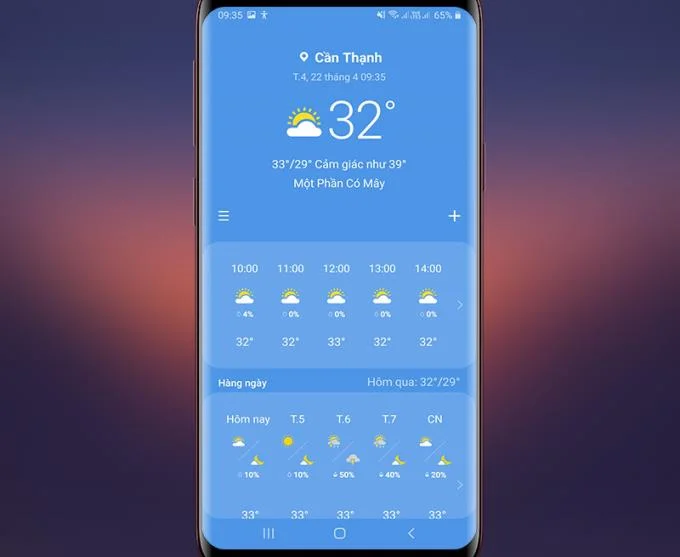
If you are using a Samsung phone , you will inevitably receive notifications about current weather conditions from time to time. Clicking on it will enter an exclusive Samsung weather app. This article will help you create a weather application shortcut in the easiest way!
1. Add a weather widget to your home screen
We will have two ways to add widgets to the home screen.
Method 1: Go to the settings of the machine
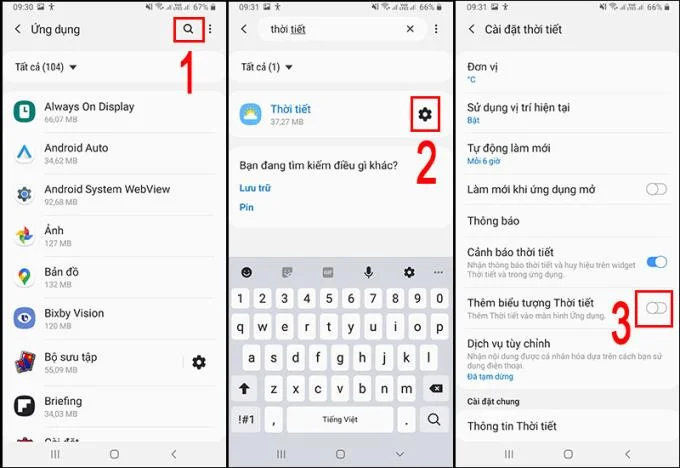
- Step 1: Swipe down the edge of the screen > Tap the gear icon (settings)> We go to the Application section .
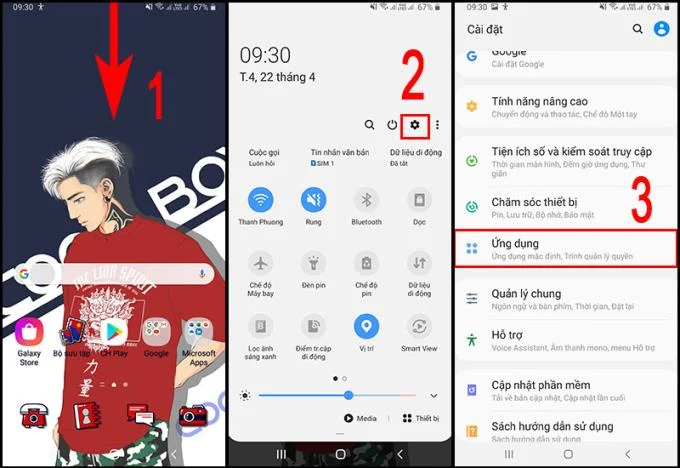
- Step 2: Go to the search section of the application to find the weather application > Click the cog icon (the settings of the weather application)> Go to the Add Weather icon.
![How to add and install weather widgets on Samsung phones]()
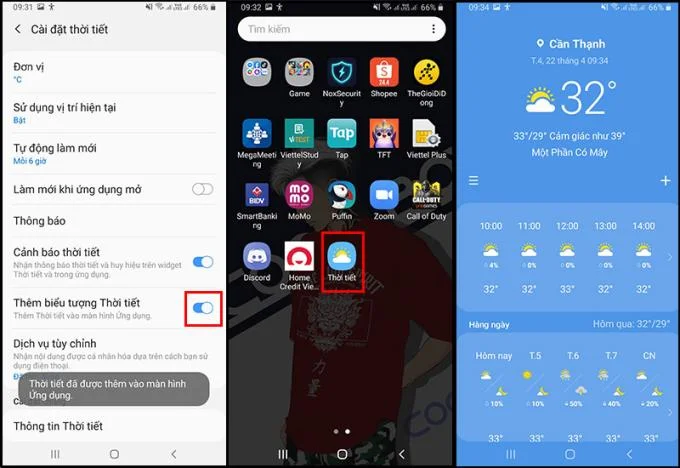
- Step 3: Click the button next to add the weather icon to make it turn green as shown below> Weather application has appeared in the application store.
![How to add and install weather widgets on Samsung phones]()
Method 2: Press and hold the home screen
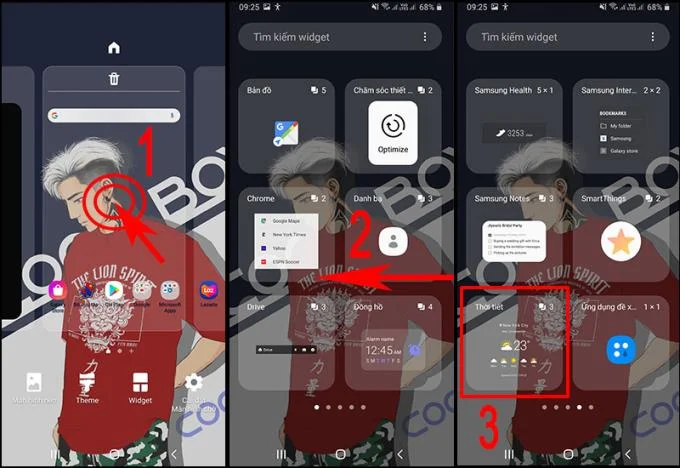
- Step 1: Press and hold the home screen to get the interface as shown> Tap on Widgets > Swipe from the right edge to search for Weather > Tap Weather widget.
![How to add and install weather widgets on Samsung phones]()
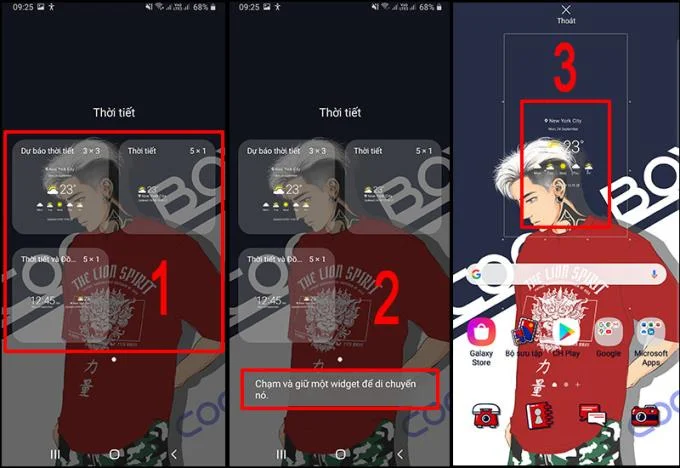
- Step 2: Weather widget interface appears> Touch and hold any widget you want> Drag and drop widget to home screen.
![How to add and install weather widgets on Samsung phones]()
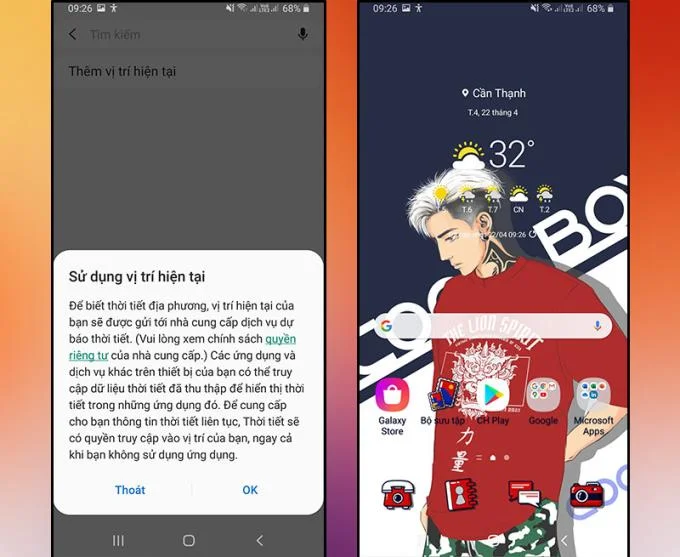
Note: The app will automatically select your current location if you enable location, so that the app will automatically update weather information where you are currently.
![How to add and install weather widgets on Samsung phones]()
2. Install weather widget
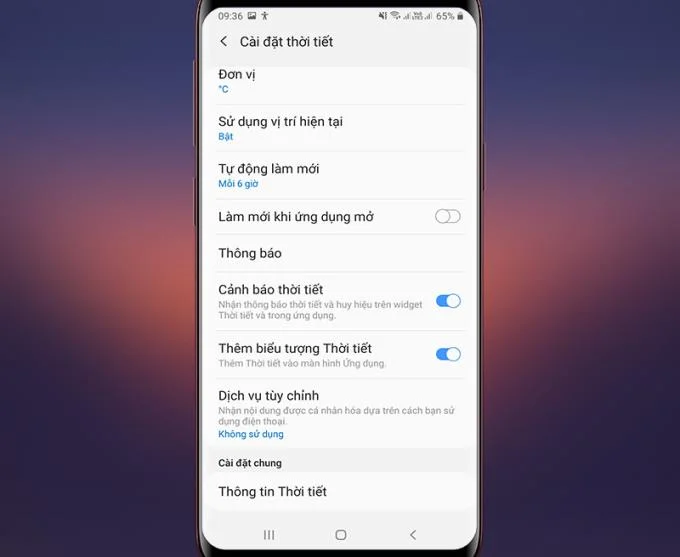
- Unit: You can select the temperature unit you want to display (Celsius hoc degrees F).
- Use current location: Turning it on will help weather forecasting service provider give you weather information of current location (this requires turning on the device's location).
- Automatic refresh : There are many options for timelines for the machine to update the latest information (this requires a network connection).
![How to add and install weather widgets on Samsung phones]()
- Refresh when opening the app: Turning this on will help the device automatically update the latest weather information when the app is open.
- Notifications: Sale will receive weather change information on the phone 's notification .
- Weather information: Information about a weather app (the latest updated version of the app).
3. Some notes when using weather widgets
- You must have a new network to update the weather. For example, if you install it after 1 hour, when you do not open the network, you will not be able to update new information.
- Weather is for reference only.
- If the device displays your location incorrectly, turn on the GPS and reload the weather app or reinstall the city or region in the weather app (Use current location - ON).
![How to add and install weather widgets on Samsung phones]()
Hope this information helps you to do what you want!
See more:
>>> 4 steps updating home screen weather on Samsung phones
>>> Quickly update weather news thanks to Google right on the main screen