Camera is something that is extremely familiar and close to people who often use it to take pictures or record video memories. With the strong development of the information technology industry, you can take pictures right away with the laptop camera. However, turning on and off the laptop camera is still a dilemma for many people. In the article below, WebTech360 will guide you how to turn off and turn on the laptop camera in the simplest way.
1. Answer: Where is the laptop camera located?
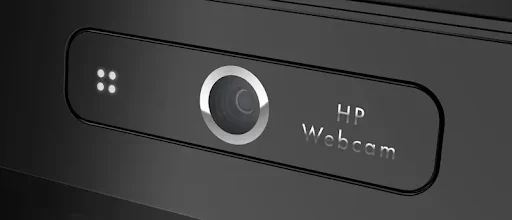
The laptop camera is at the top center of the screen
Laptop camera or Cam is a part that is integrated on every laptop. It allows you to take photos or record videos simply, but still bring relative quality.
Basically, the laptop camera is arranged in the center position and is easiest to see. They are usually placed at the top center of the laptop screen. This position will help you easily take photos and make video calls in the most accurate way. This is also the position to help get your full face when taking photos or video chatting with friends and relatives.
2. Instructions on how to turn off the laptop camera simply
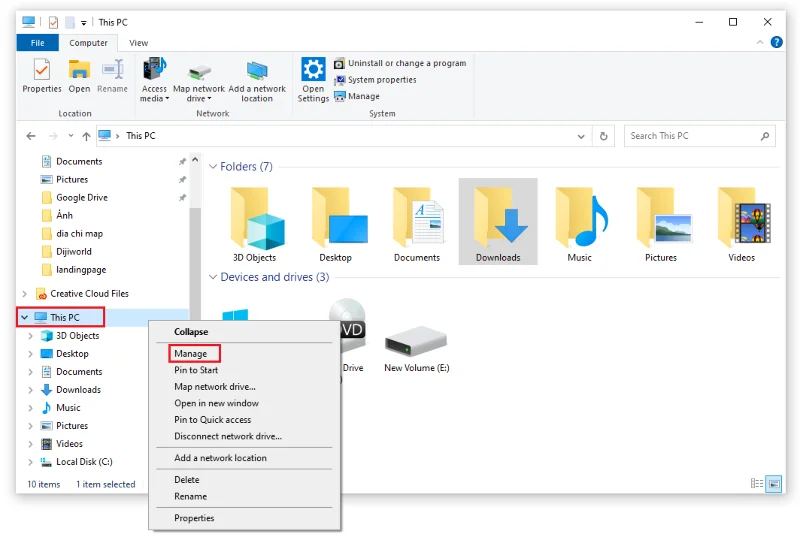
Step 1: To turn off the laptop camera, first right-click the This PC icon on the laptop screen and select Manage . Here, your computer will display a table with different tasks. Including Task Schedule to check the operation of applications and Device Manager to manage all the tools of the computer including the camera.

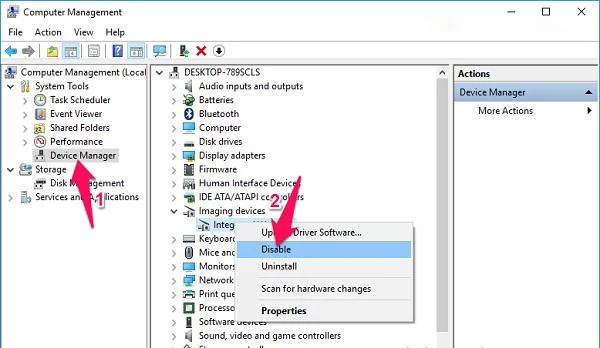
Step 2: Select Device Manager in the left menu bar and then double-click the Imaging devices section in the right window.
- At this point, you will see the webcam driver named Integrated Webcam or another name. Then, right-click on it and select Disable to stop the laptop camera from working.

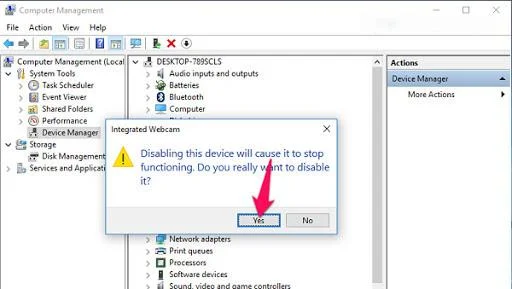
Step 3: When the confirmation window appears, click the Yes button to agree to turn off the laptop camera.

With just the above simple steps, you can turn off the laptop camera successfully. This will prevent hackers from entering your laptop camera.
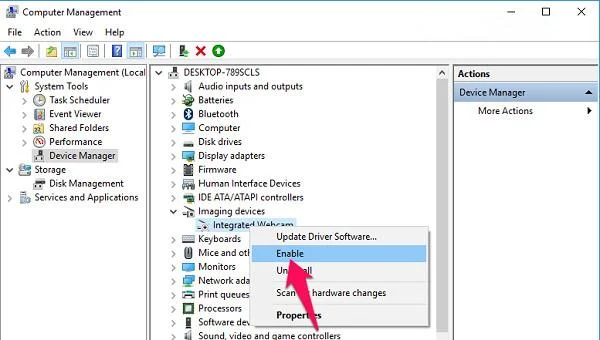
Step 4: In case if you want to reopen the laptop camera, select Enable again

3. Instructions on how to open the laptop camera with Windows
After turning off the laptop camera and want to open it again, please do the following:
3.1. Instructions on how to open laptop camera with Windows 7
With a laptop running on Windows 7 operating system with pre-installed camera opening software, you just need to click on the Start box and then enter " camera " in the search box to display the application and then open it.
Another way to open the laptop camera is to click on the Computer box to see if there is a USB Video Device item. If so, just clicking on it can open the laptop camera.
3.2. Instructions on how to open the laptop camera on Windows 8

Instructions on how to open the laptop camera on Windows 8
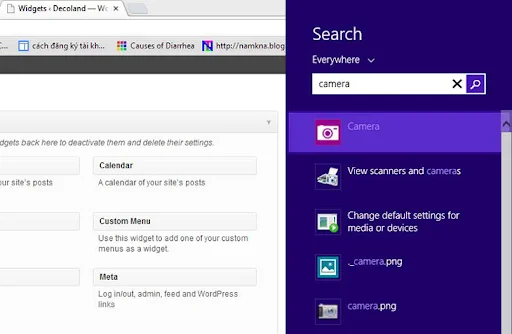
For Windows 8 operating system, the process of turning on and off the laptop camera is not complicated. To open the camera, you just need to follow these simple steps:
First find the Search tool by hovering your mouse over the right side of the laptop screen. Next, please update the keyword "Camera" inside the Search bar. In case the camera item appears, just click on it.
However, if you type in the search bar and still no camera item appears, this means that the computer has not yet installed the camera driver. So people need to check immediately.
3.3. Instructions to open laptop camera on Windows 10 operating system
Similar to the laptops running on the operating system Win 7, Win 8, Win 10 also has many outstanding advances. However, the way to turn on and off the laptop camera on computers running Windows 10 operating system is also very simple. To open the camera, you just need to follow these steps:
First, you need to click on the Start menu bar and then update to the "camera" section. In case the camera appears in the search results box, people just need to click on it to be able to open it easily.
If this is the first time accessing the laptop camera, the computer will ask you for some other specific problems. Such as allowing the use of microphones and webcams, as well as the user's location. Therefore, you need to click allow all of these to open the laptop camera immediately.
Now everyone can comfortably take pictures or record videos through their laptops. If you want to take a photo, select the camera icon on the laptop camera. And in case you want to conduct video recording, please select the camera icon.
Through today's article, WebTech360 hopes that you have understood the steps to turn on and off the laptop camera easily and quickly. If you are still wondering or have any other problems about the laptop, please contact WebTech360 immediately via the Hotline number below. Or you can also leave a message on our article for free support and advice.