How To Cut Out A Selection In Gimp

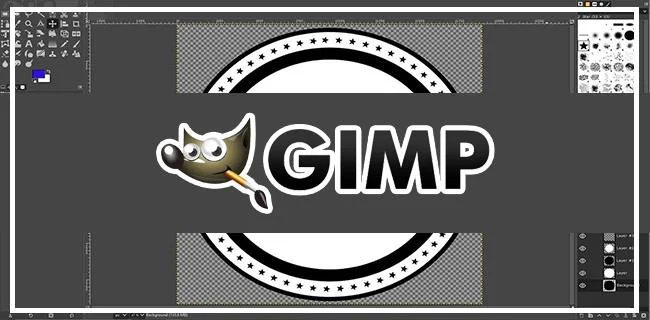
GIMP or GNU Image Manipulation Program offers several tools for selecting parts of illustrations or images, such as the Lasso, Ellipse, and Rectangle. All of these are incredibly useful when creating memes or working on your brand-new web design project. Cutting out the selected parts is another convenient feature; but how exactly do you use it?

How To Cut Out A Selection In Gimp

This article will show you how to cut out selections in GIMP. You’ll learn how to master this function and take your creations to the next level.

How to Cut Out Selection

Cutting out a selection in GIMP is straightforward. Here’s how to do so with rectangular objects.

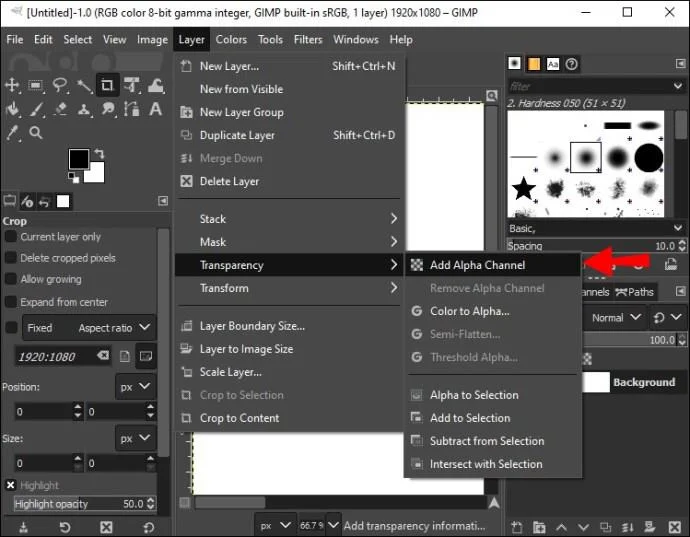
  1. Open your “Layer” menu, followed by “Transparency.”
    How To Cut Out A Selection In Gimp
  2. Press the prompt that lets you add an “Alpha” channel. This will incorporate a transparent background.
    How To Cut Out A Selection In Gimp
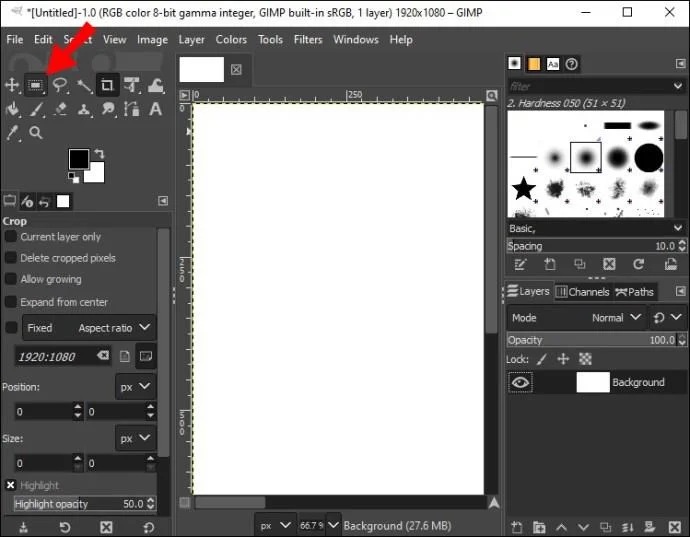
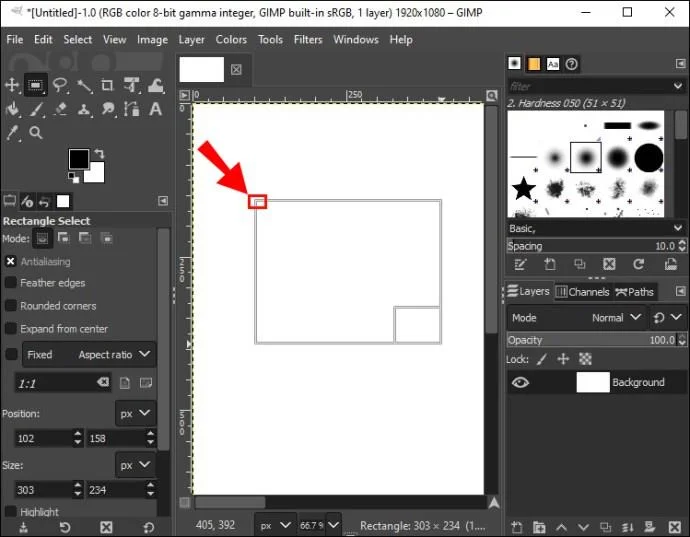
  3. Click your “Rectangle Select” option. Use the feature to create a rectangular zone around the selected object or image you wish to cut.
    How To Cut Out A Selection In Gimp
  4. Navigate to the top-left part of the image or object.
    How To Cut Out A Selection In Gimp
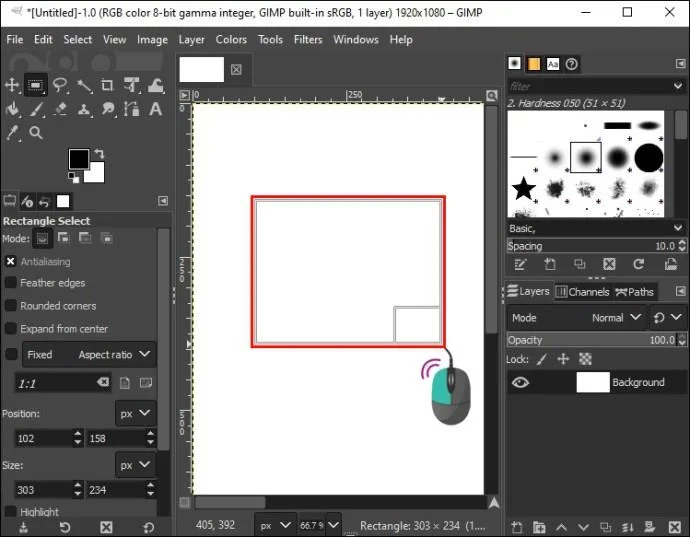
  5. Press and hold your left mouse button.
    How To Cut Out A Selection In Gimp
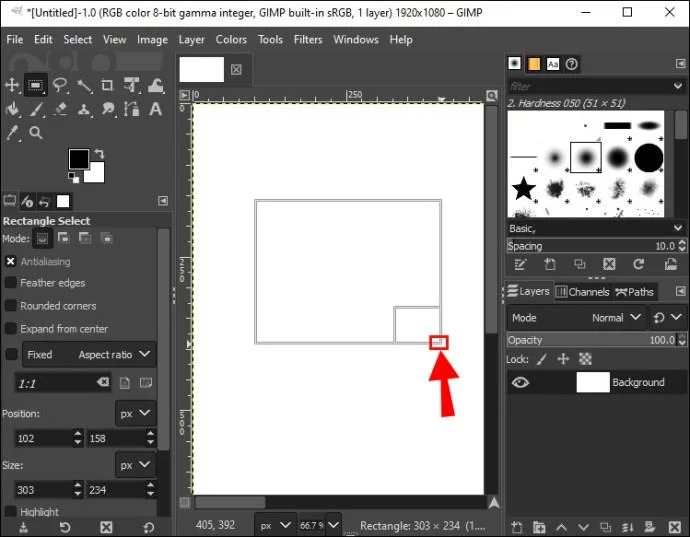
  6. Drag your cursor down to the right side of the area until your selection rectangle encloses it.
    How To Cut Out A Selection In Gimp
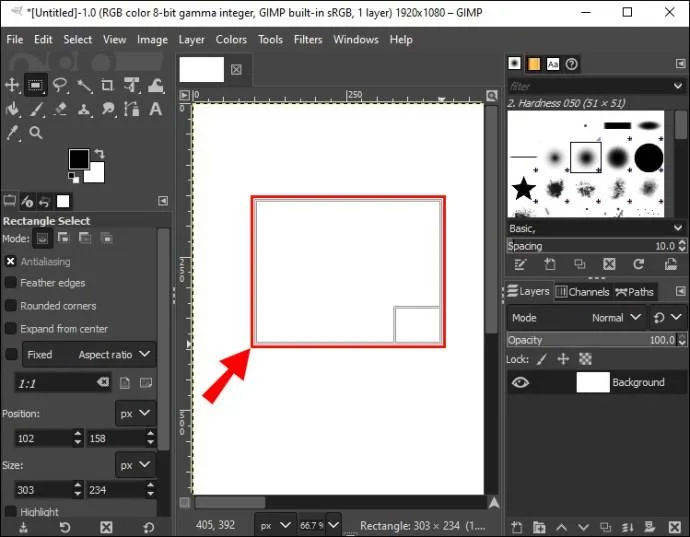
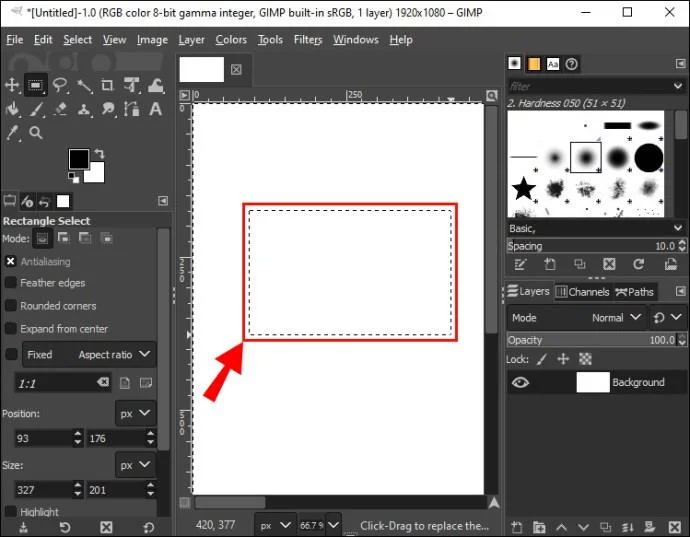
  7. Release your mouse button, and the program should show a box with moving lines around the part you wish to select and cut.
    How To Cut Out A Selection In Gimp
  8. Use the keyboard shortcut “Ctrl + I” to invert your selection.
    How To Cut Out A Selection In Gimp
    How To Cut Out A Selection In Gimp
  9. Press “Ctrl + X” to get rid of the section of the object or image you want to remove. The selected area should now appear on top of your transparent background.
    How To Cut Out A Selection In Gimp

This method works for cutting out elliptical, oval, and circular objects too.

  1. Enter your “Layer” menu and go to “Transparency.”
    How To Cut Out A Selection In Gimp
  2. Add an “Alpha” channel. This will set up a transparent background.
    How To Cut Out A Selection In Gimp
  3. Click your “Ellipse Select” option that allows you to draw a section around an image or object that will be cut out.
    How To Cut Out A Selection In Gimp
  4. Go to the upper-left part of the object.
    How To Cut Out A Selection In Gimp
  5. Press and hold your left mouse button. Drag the cursor to your right until the selection tool surrounds your entire image or object.
    How To Cut Out A Selection In Gimp
  6. Release the button, and you should see moving dashes around your object.
    How To Cut Out A Selection In Gimp
  7. Release the button and press “Ctrl + I”.
    How To Cut Out A Selection In Gimp
    How To Cut Out A Selection In Gimp
  8. Use “Ctrl + X” and the selected section will be cut out.
    How To Cut Out A Selection In Gimp

Finally, this is what you need to do to cut out selections in irregularly-shaped objects or images.

  1. Head to your “Layer” section and access “Transparency.”
    How To Cut Out A Selection In Gimp
  2. Include an “Alpha” channel to create a transparent field.
    How To Cut Out A Selection In Gimp
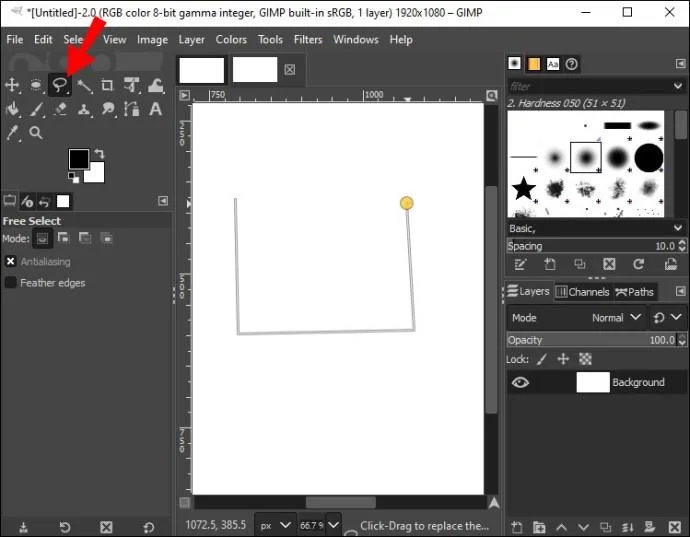
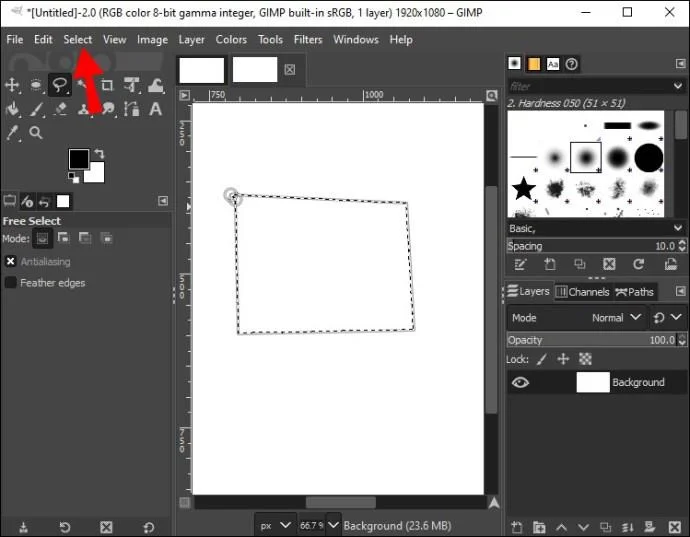
  3. Press your “Lasso” tool and draw a line around the image or object that will be cut out. Use your left click as you navigate the edges with your cursor. The shorter the distance between your mouse clicks, the more accurately you can select the desired sections.
    How To Cut Out A Selection In Gimp
  4. Choose the first spot (anchor point) you made with your “Lasso” tool to encircle the object with a loop.
    How To Cut Out A Selection In Gimp
  5. Open your “Select” menu.
    How To Cut Out A Selection In Gimp
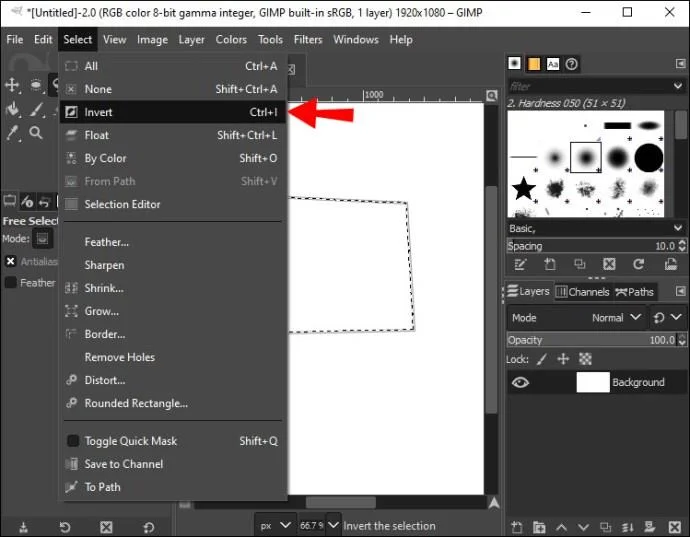
  6. Press “Invert.” This will select all sections of the object except for the area outlined with the “Lasso” tool.
    How To Cut Out A Selection In Gimp
  7. Use “Ctrl + X” to remove the parts.
    How To Cut Out A Selection In Gimp

Additional FAQ

How do you deselect a selection in GIMP?

After creating a selection, you may realize it’s not quite right for your project. If so, you want to deselect it.

1. Head to the “Select” menu.

2. Press “None,” and the selection should disappear. Alternatively, use “Shift + Ctrl + A” or click outside your selection while your selection tool is active.

Let Your Imagination Run Free

The selection cut-out feature opens up endless possibilities. You can experiment with various shapes and paste them into transparent backgrounds for a mesmerizing effect. You can also embellish your previous projects with stunning creations. The key is to let your imagination guide you.

How hard is it to cut out selections in GIMP? Is it a beginner-friendly feature, or did you start using it once you gained some experience? Let us know in the comments section below.

Leave a Comment

How to Chromecast in Samsung TV

How to Chromecast in Samsung TV

Learn how to Chromecast in Samsung TV by connecting a Chromecast device and streaming from your phone or computer in just a few minutes.

Adobe Acrobat DC Reader Free Download

Adobe Acrobat DC Reader Free Download

Get the official Adobe Acrobat DC Reader free download safely. Follow this step-by-step guide to install the latest version for viewing and editing PDFs on Windows or Mac.

How to Update to Win 11

How to Update to Win 11

How to Update to Win 11 from Windows 10 safely with this detailed guide. Check requirements, run the upgrade, and enjoy new features and better security on compatible hardware.

Adobe Reader Free Version

Adobe Reader Free Version

Get the Adobe Reader Free Version to view, print, and annotate PDFs at no cost. Follow this guide to download, install, and use the official free reader safely on any device.

How to Boot in Safe Mode Windows 11

How to Boot in Safe Mode Windows 11

How to boot in safe mode Windows 11 helps isolate driver and software issues. Follow these precise steps using built-in tools to start your PC with minimal services.

No Sound Chrome Browser

No Sound Chrome Browser

Fix No Sound Chrome Browser problems fast with these targeted troubleshooting steps that restore audio on Windows, Mac and Linux.

Critical Process Died Windows 11

Critical Process Died Windows 11

Resolve the Critical Process Died Windows 11 error with targeted fixes for drivers, system files, and hardware. Restore stability fast and stop repeated Blue Screen crashes.

Adobe Reader PDF Reader

Adobe Reader PDF Reader

Adobe Reader PDF Reader lets you view, annotate, sign and fill PDF forms with precision. Follow this guide to install and master its core tools on desktop or mobile.

Windows 11 Update Issues

Windows 11 Update Issues

Windows 11 Update Issues often stem from corrupted files or service glitches. Follow these targeted fixes to resolve errors and keep your system current without reinstalling Windows.

How to Sync One Drive

How to Sync One Drive

How to Sync One Drive keeps files current across every device. Follow these exact steps to set up automatic syncing in minutes on Windows, Mac, or mobile.