Wireshark is an invaluable network analysis tool that translates the data traveling through your networks into a readable format. You can identify network or security issues, debug protocol implementations, or simply monitor traffic by capturing packets with Wireshark.

Take a closer look at what’s happening in your network by capturing the exact information you need. Here’s how to capture different types of packets in Wireshark.
How to Capture Packets
Beginning the capturing process in Wireshark takes but a few clicks. All you need to do is start capture mode, and data will start pouring in unfiltered. While this unfiltered mode is great when you need a full report of what’s happening, the amount of data captured like this can be overwhelming. To make it more manageable, you can use filters and capture a specific type of data only. You’ll find the steps to do so further below.
For now, let’s see how to start capturing all packets in Wireshark:
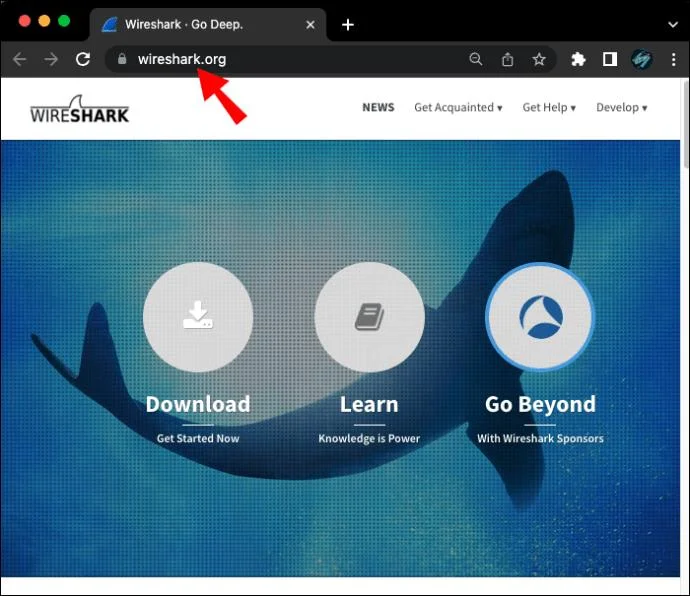
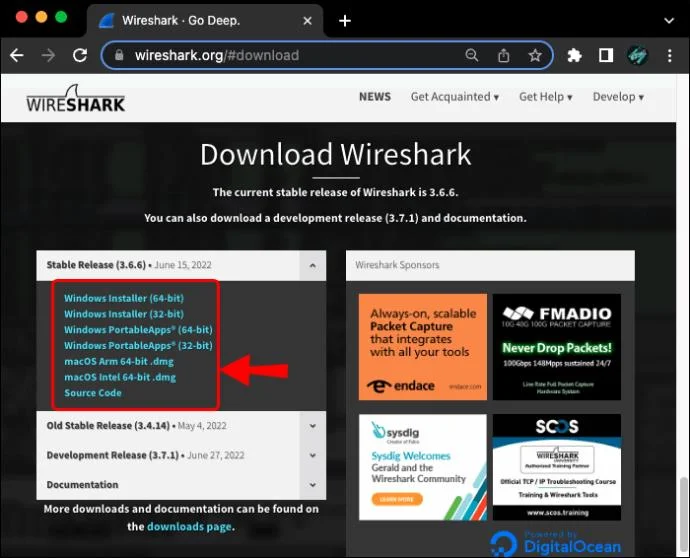
- Make sure you have the latest version of Wireshark installed. You can grab the program for free from the official Wireshark website.


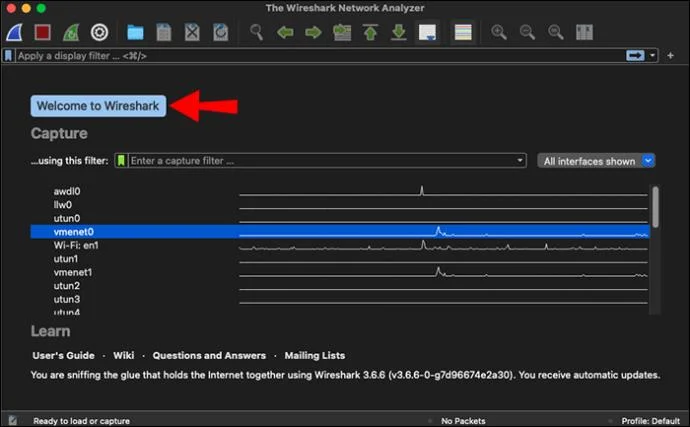
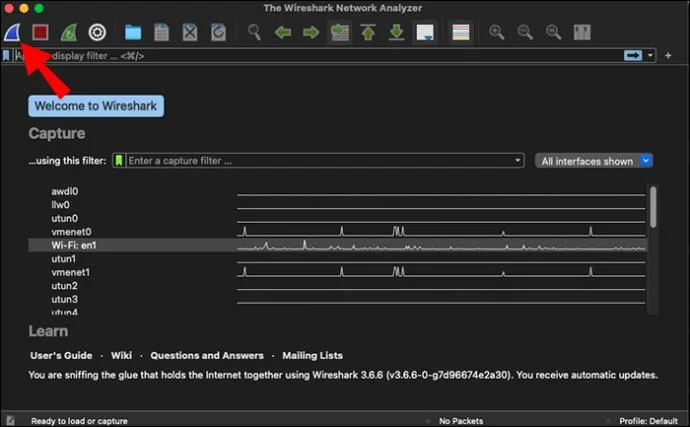
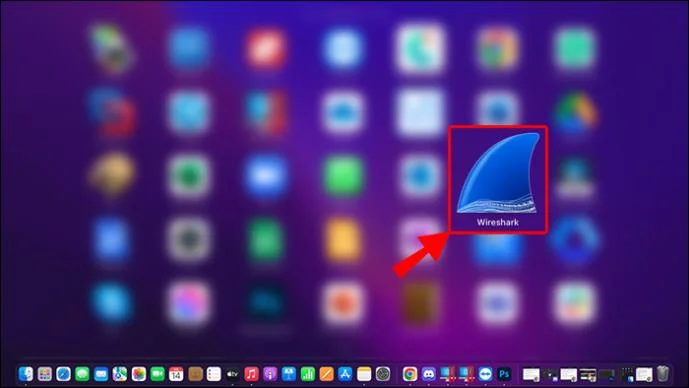
- Launch the program. You’ll be greeted by the welcome screen, with the list of your detected networks.

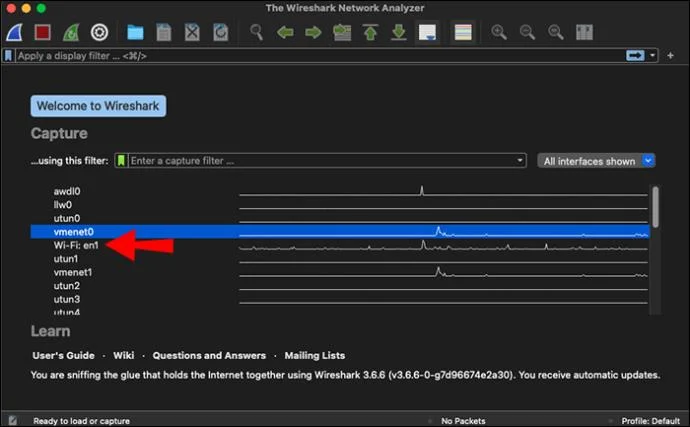
- Start capturing packets in one of the following ways:
- Double-click the network of your choice on the list.

- Select one or more network interfaces then click the shark fin icon in the toolbar or “Capture,” then “Start” in the menu bar.


Note: You can adjust the Capture Options — such as promiscuous mode — prior to getting started by clicking “Capture” and then “Options,” too.
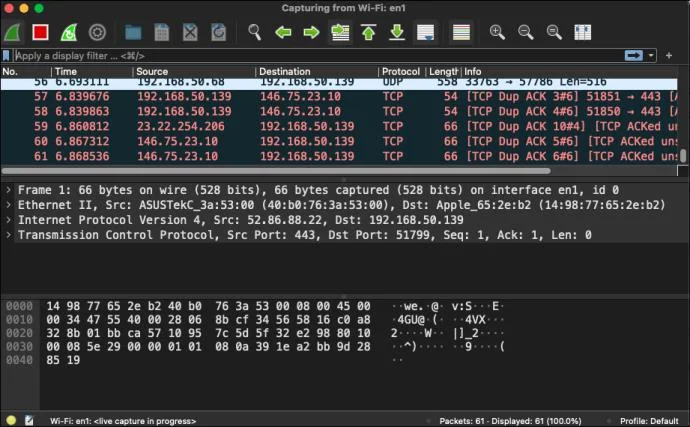
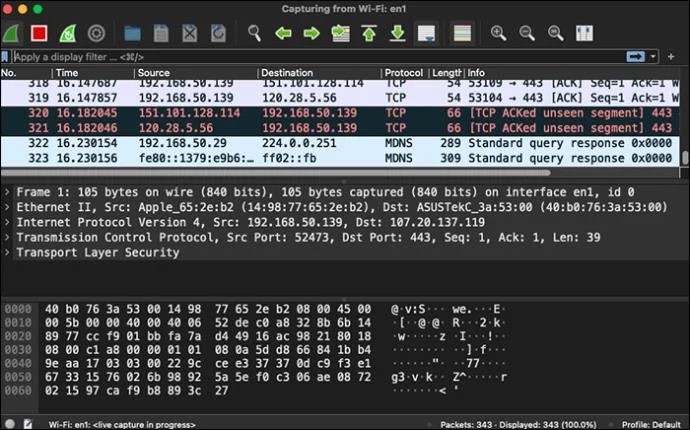
As soon as you click the network interface or the start button, you’ll be taken to the capture screen. You’ll see Wireshark grabbing data packets in real time. Once satisfied with the amount of data gathered, you can stop capturing by clicking the red stop button in the top toolbar. Start analyzing the data right away or save it for later by clicking “File” and then “Save As…” in the menu bar.
How to Capture UDP Packets
Following the steps above will prompt the program to capture all packets. While different types of traffic are easily distinguishable in Wireshark thanks to color coding, you’ll still need to sift through a lot of data. If you’re only looking for information about certain packets, you can use filters to make your job easier.
Wireshark supports both capture and display filters. Using a capture filter will mean the program only captures the packets you define. Display filters merely filter through already captured packets. The two filters work differently and use different commands, so you’ll need to decide which one best fits your needs.
If you want to capture UDP traffic only, use a capture filter before beginning the capturing process.
- Launch Wireshark.

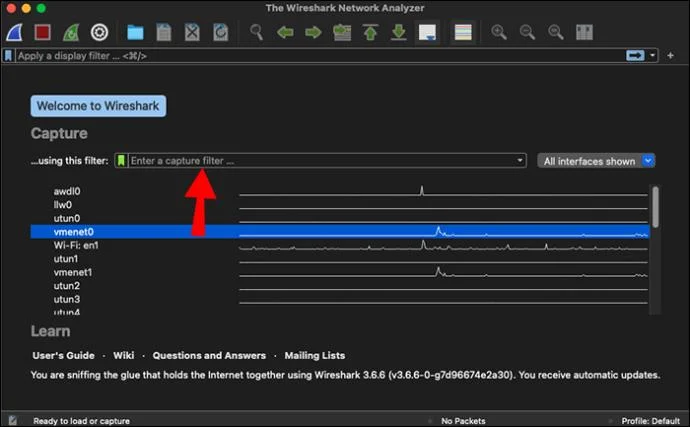
- Look for the Capture Filter bar on the welcome screen. It’s the one directly above your network list.

- Enter “udp” in the Capture Filter bar and press Enter to start capturing UDP traffic. You can also add a specific port after “udp” if you wish to specify your filter further.

Tip: Another way to adjust your capture filters is clicking “Capture,” then “Options” in the menu. The filter bar will be at the bottom of the Capture Interface.
Wireshark How to Capture DHCP Packets
To capture DHCP packets exclusively, you’ll need to enter the corresponding port number in the capture filter. Use the capture filter “port 67” or “port 68” or the combination of the two “port 67 or port 68” to capture DHCP packets.
Similarly, a display filter can filter out DHCP packets in your capture screen. However, remember that display filters use a different syntax than capture filters. You’ll have to enter “udp.port == 68” in the display filter bar.
How to Capture Ping Packets
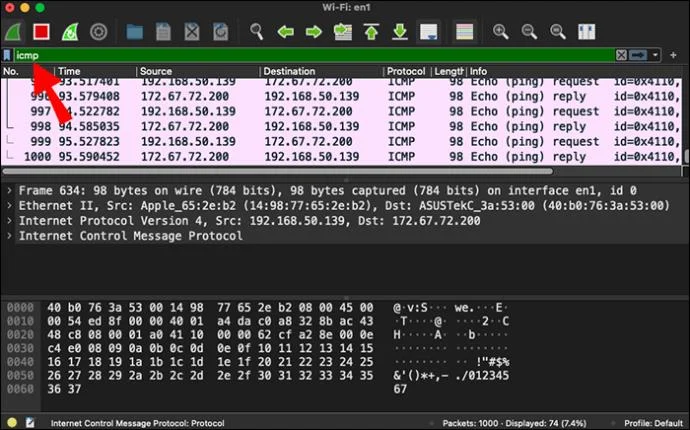
The best way to capture ping packets (otherwise known as Internet Control Message Protocol (ICMP) Echo traffic) in Wireshark is by using a display filter in capture mode. Here’s the process.
- Open Wireshark and start the capturing process as described above.

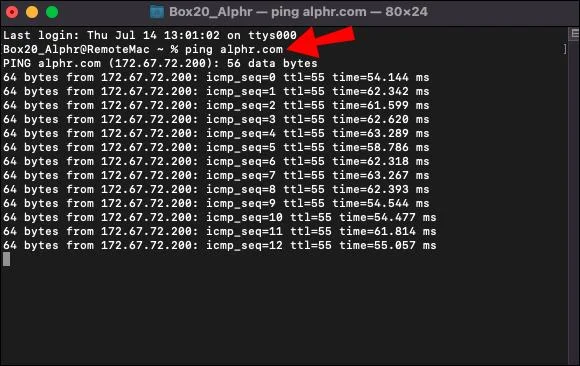
- Open your command prompt and ping the address of your choice.

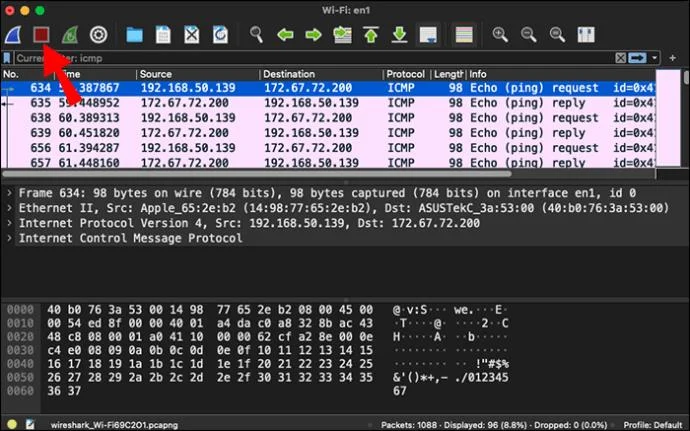
- Go back to Wireshark and stop the capture process.

- Create a filter for ping packets by typing “icmp” in your display filter bar, then hit Enter.

You’ll see both the requests and the replies to the ping in the packets list.
Wireshark How to Capture Packets From a Specific IP Address
If you want to focus your capture on a specific IP address, enter the following capture filter before starting your capture: “host [the IP address you want to record].” For instance, capturing packets related to the IP address 111.11.1.1 would require the filter “host 111.11.1.1” in the capture filter bar.
You can also define whether you want to capture traffic to or from a specific IP address by adding “src” for source or “dst” for destination at the beginning instead of “host:”
- type “src 111.11.1.1” for packets coming from the IP address in question
- type “dst 111.11.1.1” for packets being sent to the IP address in question
Naturally, you can combine these filters to specify the traffic you want to capture further. Connect the two filters with “and” to get the packets traveling between the two IP addresses you define. For example, “src 111.11.1.1 and dst 222.22.2.2” will only capture the packets sent from 111.11.1.1 to 222.22.2.2.
Use display filters to filter packets related to a specific IP address in an already captured set of data. For the abovementioned IP address, enter “ip.addr == 111.11.1.1” in your display filter bar, and so on.
FAQs
How do I capture router packets in Wireshark?
You can only capture router packets with Wireshark if you have a router that supports port mirroring. First, you’ll need to mirror the traffic into a LAN port. The process might differ depending on your device.
1. Go to LAN and then LAN Port Mirror.
2. Enable port mirroring.
3. Configure the source and destination points.
If you can mirror your traffic this way, you’ll be able to capture router packets normally in Wireshark’s capture mode.
Why am I unable to capture packets in Wireshark?
If your Wireshark isn’t capturing any packets, look into the following possibilities to troubleshoot the issue:
• Make sure you don’t have any overly specific capture filters enabled.
• Look for Wireshark updates in the Help menu.
• Verify that a firewall isn’t blocking your Wireshark application.
If none of the above factors apply to you, the issue is most likely with your hardware.
Gotta Capture All
Capturing packets with Wireshark only takes a few clicks. It’s probably going to be the easiest part of your troubleshooting task. Capture all the traffic and filter packets later or use capture filters to record only a specific data type.
Did you manage to capture the packets you wanted using these tips? Which Wireshark capture filters do you find the most useful? Let us know in the comments section below.