One of the biggest lessons being learned in the social media world right now is that people want content they can control. Facebook may want to know everything about you, but if you can’t control who gets to see it, then even the power of the Zuck is insufficient to compel you to share it. We want control over what comes into and goes out of our virtual lives. Sometimes that just means having pictures disappear after a single view or after the passage of a certain amount of time. Sometimes it means hitting the reset button entirely, wiping the slate clean, and pretending you didn’t just send that picture of you drunk and in your RenFair regalia to your secret crush, or to your boss.
Instagram gets this, and while they can’t let you turn back time directly (now there would be a best-selling app), they can let you delete a message you didn’t mean to send (or simply regret) before the recipient spots it. That is, of course, if you’re fast enough.
Sending Instagram Direct Messages
Wait a second? Messages? But I thought all of your followers could see your content?
If you’re new to Instagram or just haven’t been keeping up with the last several years of app updates, you might be surprised by the news that you can send individual messages to your favorite followers. It’s time for a crash course in Instagram direct messaging.
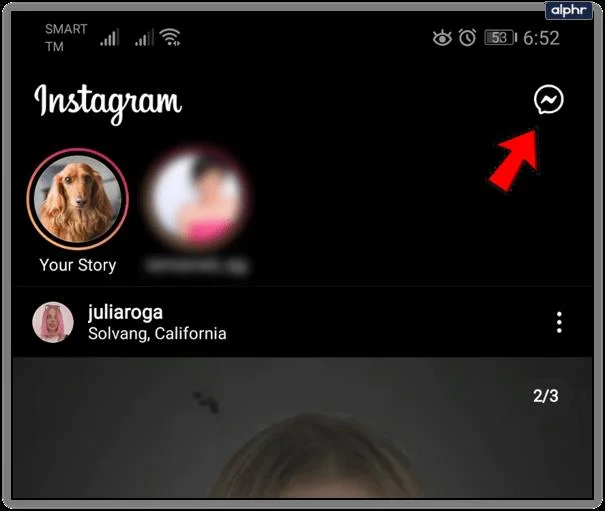
Look for the messenger or little paper airplane icon in the upper right-hand corner of the app. This is your key to direct messaging. You’ve probably seen it dozens of times and just ignored it.
- From your feed, tap on this icon to bring up a list of followers. Select the follower you want to message, and have at it.
- From individual posts on your feed or from the individual posts under your profile, tap on the same icon to share content that’s already been posted via direct message.
- From your Instagram camera, take a new picture or video, tap Send To, and select your recipients.
Only the people that you specify can see the content. What’s more, they can’t share this content with anyone else. At least, they can’t unless they are passing their phone around. Or taking screenshots. But some things are out of our hands.
Unsending Instagram Direct Messages
Great. Now you know how to send a message. But what happens when you experience messenger’s regret?
Instagram makes it easy to unsend messages.
- Tap on the direct message icon.

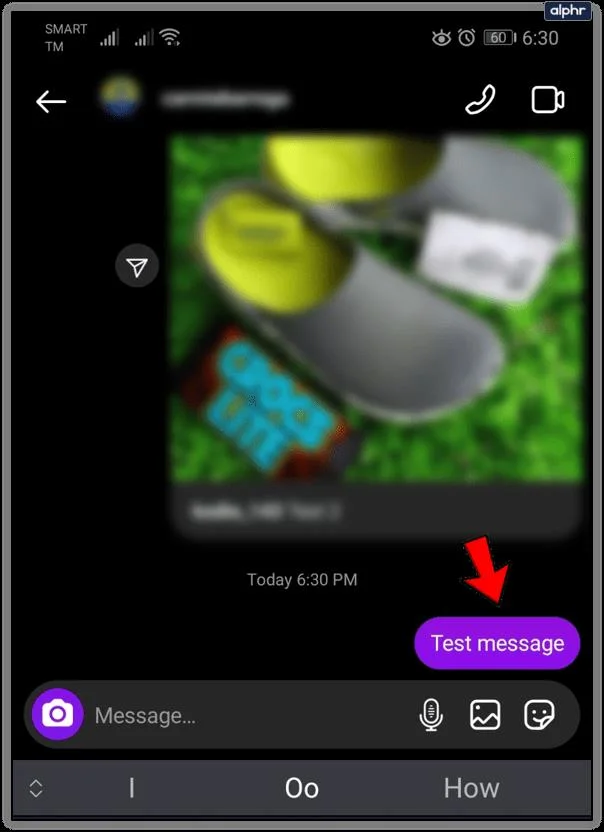
- Got to the conversation containing the message you want to unsend.

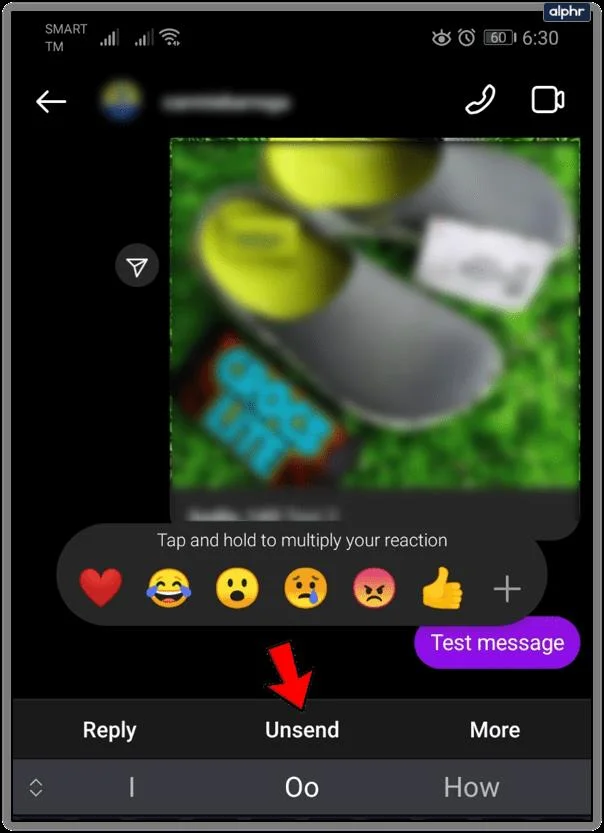
- Tap and hold the message.
- Tap Unsend.

Of course, there’s no guarantee that the recipient hasn’t already seen it.
Telling if Your Message Has Been Seen
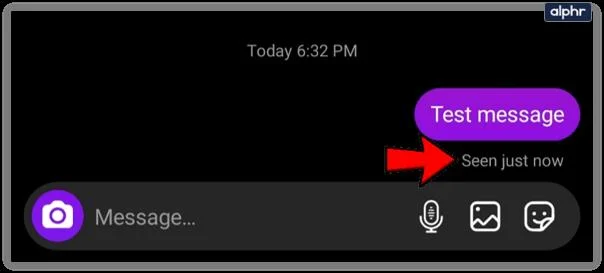
Instagram has you covered here as well. The app has included a way to tell if your messages have been viewed.
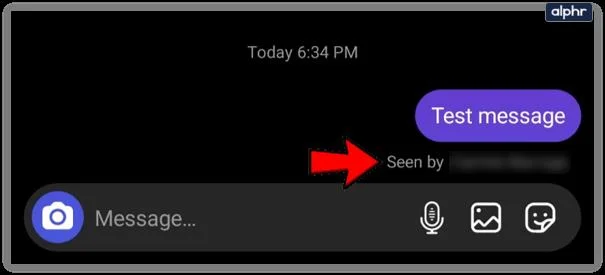
- If you sent the message to only one person, then look for the “seen” tag beneath the message. If there is nothing there, the message has not yet been viewed.

- If you sent the message to multiple specific people, look for the seen tag beneath the message. The username of the person who has viewed the message will be shown.

Now, take all of this with a grain of salt. The truth is that there are workarounds. A quick Internet search will reveal ways in which you can view a message without making it known. What’s more, for the “seen” tag to be triggered, the user actually has to open the app and enter the chat. If they see the message via a push notification on their phone, you will have no way of knowing.
Sending Disappearing Content
If you’re about to send something and suspect you might regret it, consider sending disappearing content. This way, the recipient will only get one view. Basically, that crush of yours might see that embarrassing costume, but he won’t be able to show his friends.
In every app’s relentless odyssey to be like every other app, Instagram now lets you send this kind of content to individuals via direct message. However, figuring out how is a little tricky.
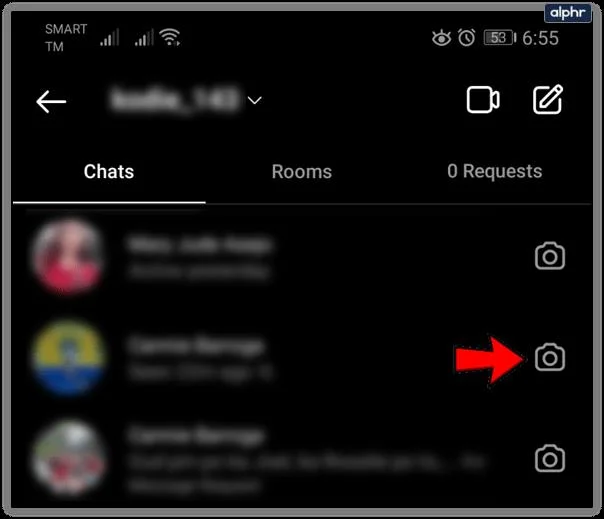
- Go to direct messages by tapping on the messenger icon.

- Tap on the camera button beside the user’s profile.

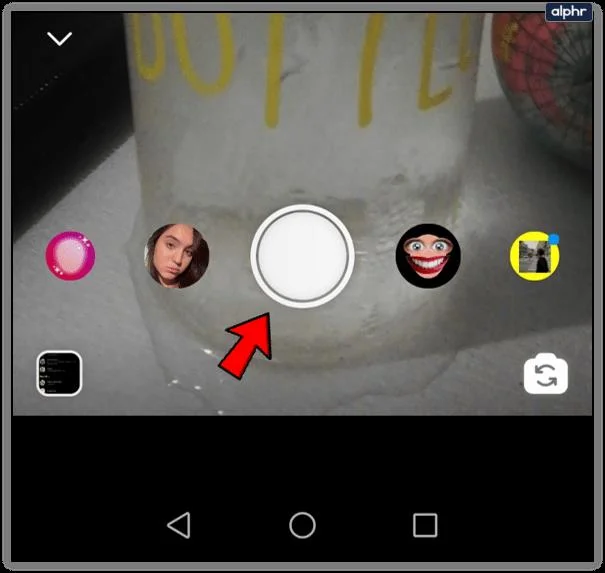
- Take a photo or video as normal.

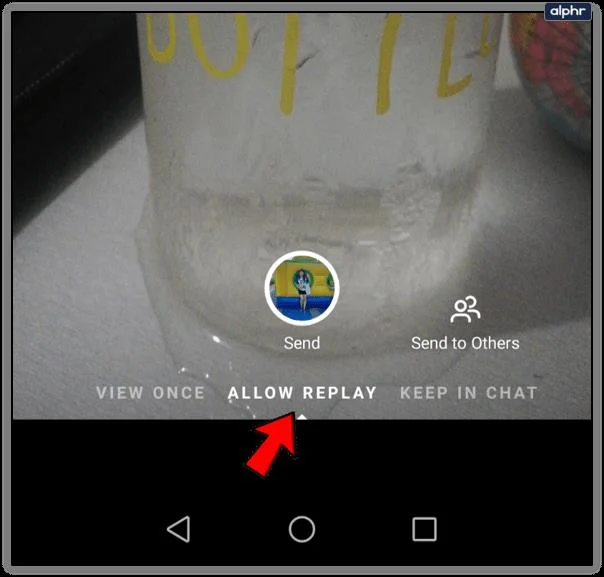
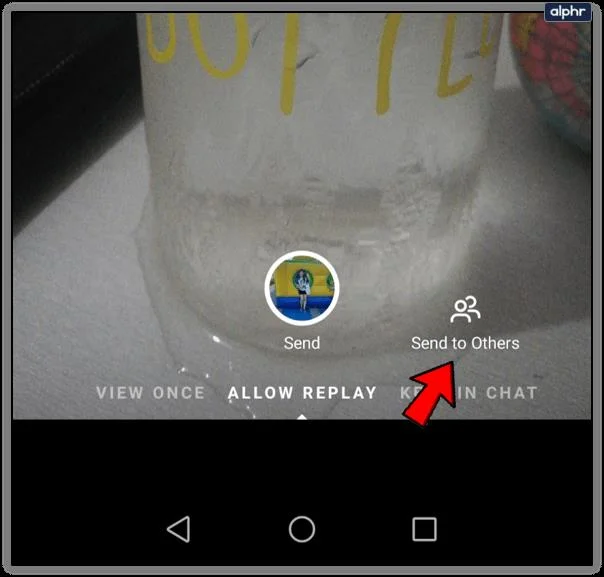
- Select whether you want to allow replay or just a single view.

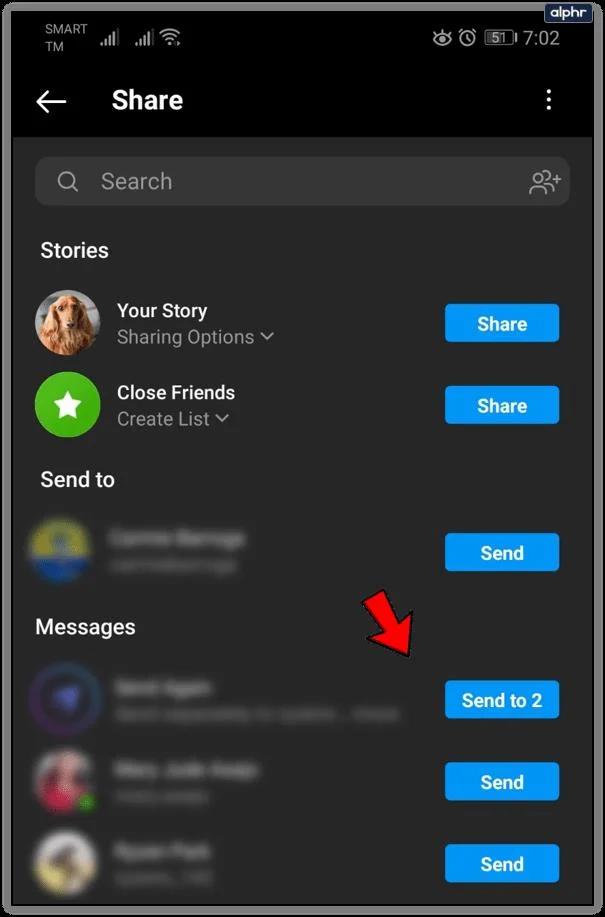
- Tap Send or Send to Others if you wish to add recipients.

- Select recipients.

Note that if you access the Instagram camera any other way, you won’t have the replay function controls. This includes tapping the camera icon from your feed or swiping right from your feed. You must access the camera from direct messaging only.
Now get out there and unsend ’til your heart’s content. Just be careful. If your crush sees a push notification and then opens direct messaging to find no message, they’ll know what’s up, and you’ll have some explaining to do.
Have any other Instagram tips or tricks? Share them with us below!