Command Prompt is a command line translator app available as a built-in feature of most operating systems. It is still a preferred way to automate tasks or even configure features that are only accessible using the command prompt. As it’s such an integral feature of a computer’s operating system, there are several ways to access it.

Read on to learn three ways to access Mac’s command prompt and some useful commands.
Using the Command Prompt on a Mac
The macOS version of the command prompt app is called Terminal. It offers access to the Unix part of macOS, allowing you to run scripts, edit settings, manage files, and use text commands. You can launch Terminal using Spotlight, Launchpad, or Finder, and here’s how.
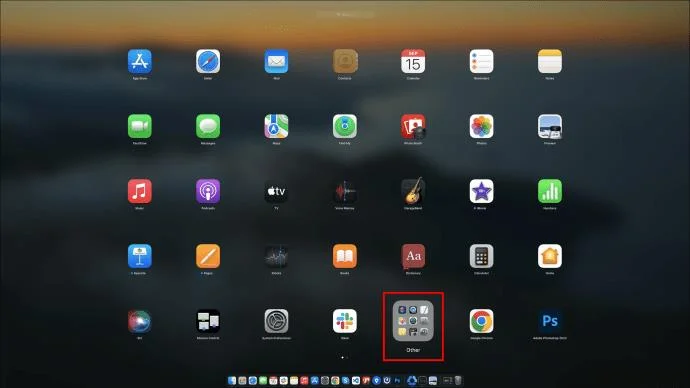
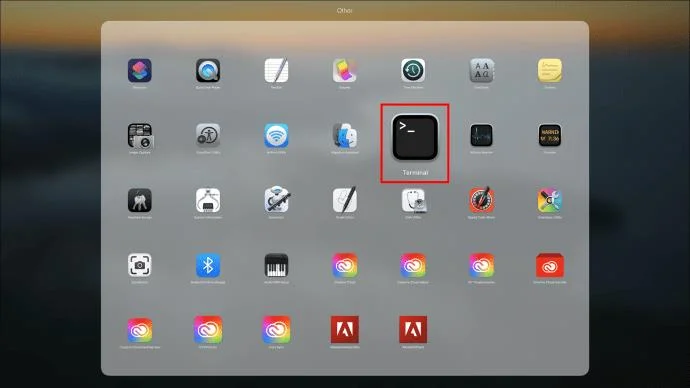
Open Terminal Using Launchpad
- Go to the Dock and click on the silver rocket icon.

- Select the “Other” folder.

- Choose “Terminal” to launch the command prompt.

If the Terminal app is not in the Other folder, it may be somewhere else in Launchpad. You can try the following methods to open Terminal.
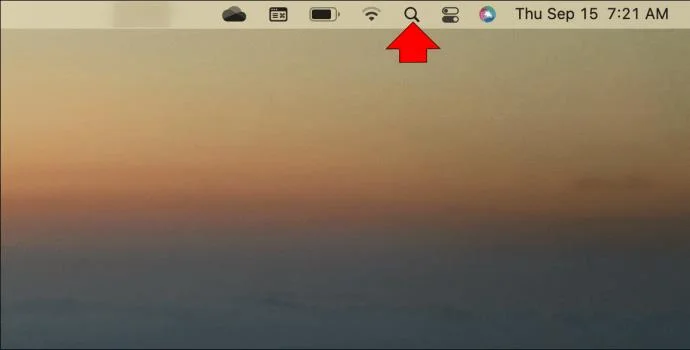
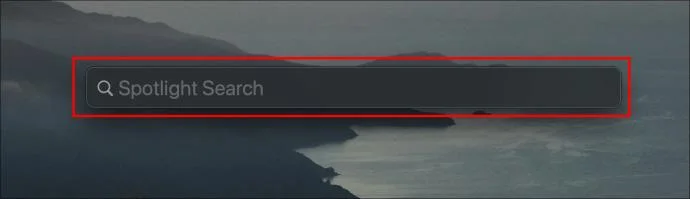
Open Terminal Using Spotlight
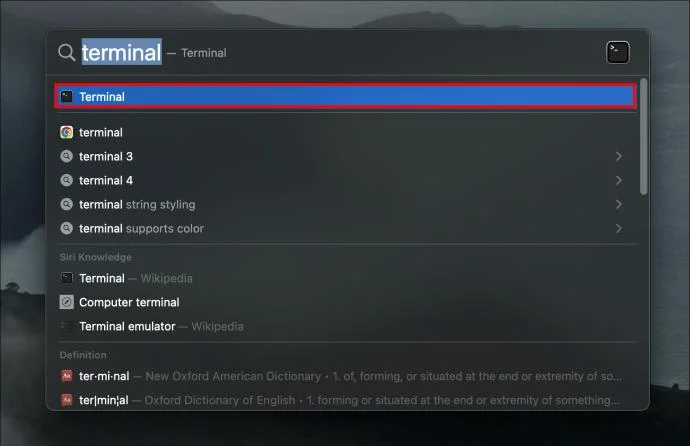
- Click on the “Spotlight” icon. It’s the magnifying glass at the top right corner. The Spotlight feature can also be accessed using the shortcut “Cmd + Space.”

- Type “terminal” in the search box, and it will appear in the search results.

- Double-click the “Terminal” option to launch the command prompt.

Open Terminal Using Finder
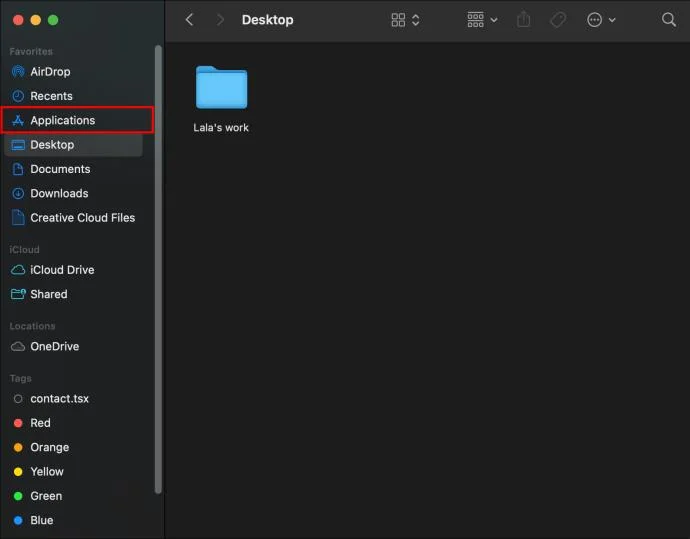
- Go to the Dock and click on the “Finder” icon. It looks like a two-tone smiling face.

- Choose “Applications” in Finder’s left panel. If it’s not there, click “Go” at the top of the screen, then click “Applications.”

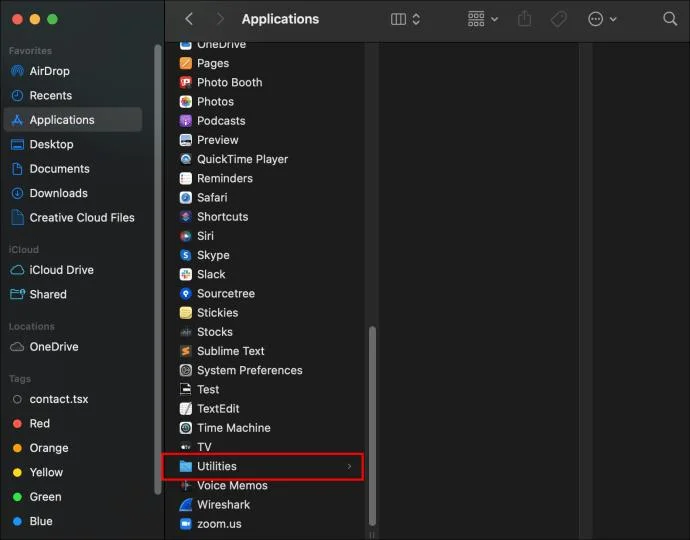
- Choose “Utilities.”

- Double-click “Terminal” to go to the command prompt.

Terminal Commands
You can execute commands in Terminal by entering the command, then hitting the return key. Terminal should then respond with any relevant information.
Below is a list of operational commands to get you started in Terminal and help grow your command prompt knowledge.
Change Directory
Command: “cd“
The “cd” command will change the Terminal directory you’re working in. This allows you to open a file, execute a command, and view the contents of a different directory.
Listing Directory
Command: Is
The “Is” command can be used while viewing the files and directories of the current directory. Use the “IS -I” command to find more file information, including the creation date, permissions, and owner.
Open Files
Command: open
The “open” command will open a file. By entering this command, a space, then the filename you want to access, you will launch the file using the appropriate application, like “Word,” for example.
Copy to Another Directory
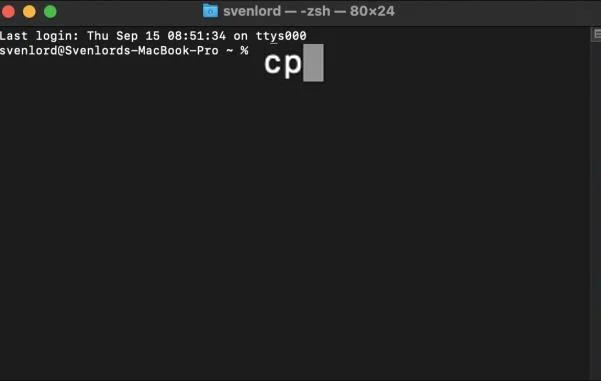
Command: cp

The “cp” command lets you copy a file from one location to another or create a new copy of a file with a new name. When stating the first value, include the original file you want to be copied, followed by a space and full path, filename, and extension of where you wish the new copy to be placed.
Example: “cp [filename] [newfilename]“.
Create a Text File
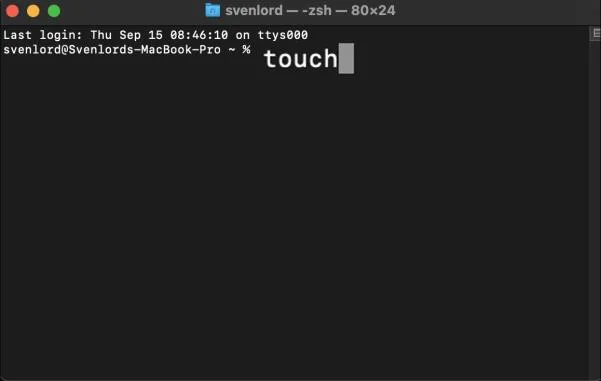
Command: touch

The “touch” command creates a blank file of any file type. Once your empty file is created, you can launch it in the text editor using the “open” command.
Example: “touch newfile.txt.”
Create a Directory
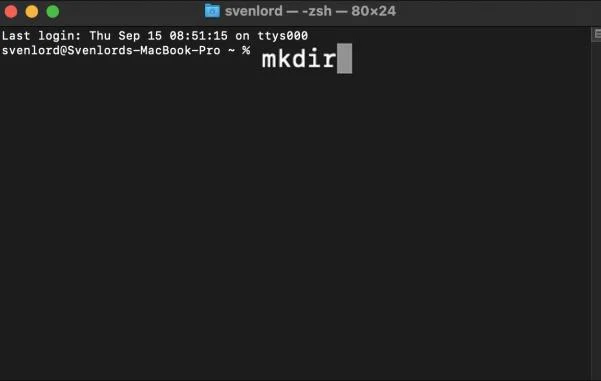
Command: mkdir

When you need another place to store new files, the “mkdir” command creates a new directory (folder). The new directory will be added to the directory you’re working in, or you can specify the path location where you want it to go.
Example: “mkdir path/to/new/directory.”
Move a File
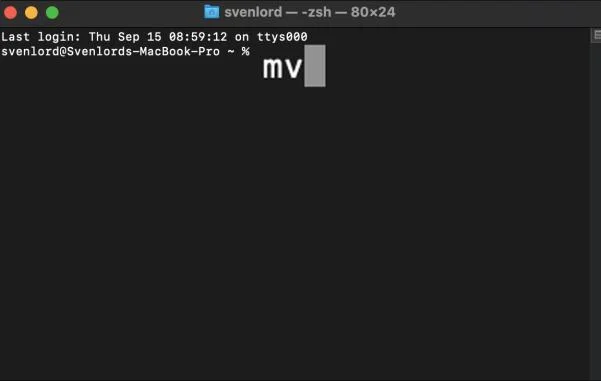
Command: mv

The “mv” command is for when you want to move a file instead of making a copy of it. It will move the specified file from its original location to the new location.
Example: “mv [filename] path/to/new/file/location.”
Copy Folder Contents to a New Folder
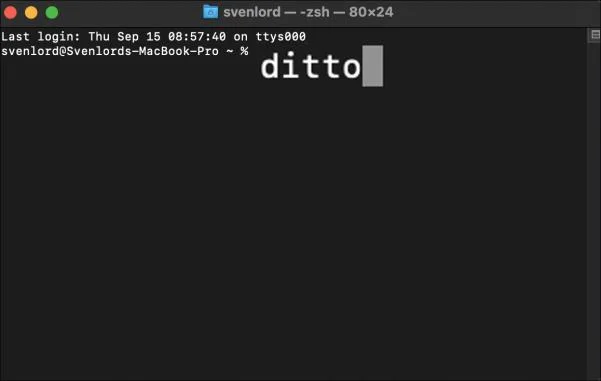
Command: ditto

Just like the English meaning of “ditto,” this command can be used to do the same thing again. It will execute a copy of all the contents of one folder into a folder specified by you. This is ideal if you need to start a new project and use an existing one as the base.
Remove a Directory
Command: rmdir

The “rmdir” command allows you to remove a directory created in error. If, for example, you misnamed a folder, you can rename it using the “mv” command or delete it using the “rmdir” command, including the path to the directory.
Remove Nested Directories
Command: rm-R
The “rm-R” command removes entire directories containing other directories or files. This command is irreversible; once executed, all the directories and files inside the path you specify will be deleted straight away.
List Running Computer Processes
Command: top

The “top” command will deliver your system’s stats inside the Terminal window. The information will include CPU, memory, and disk utilization. A list of the top actively running apps using the CPU will display, including ports used, their state, memory per app, and more. This command will execute until your press “control + c” to go back to the command line interface or quit Terminal.
Exit Sub-Screen and Return to Terminal
Command: q
The “q” command is ideal for exiting commands that run endlessly when executed, like the “top” command. You can promptly end the execution process by hitting the “q” button on your keyboard or with “control + c.”
How to Quit Terminal
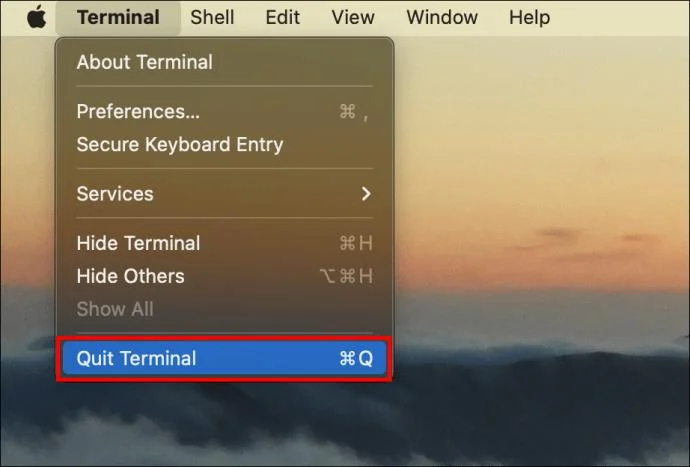
Quitting the Terminal is straightforward; here’s how:
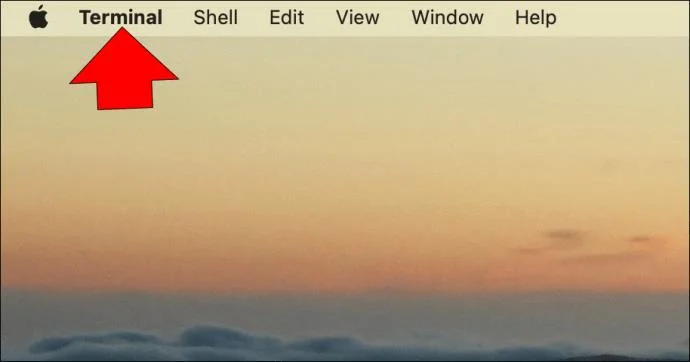
- Click “Terminal” from the main Apple menu.

- Choose “Quit Terminal.”

At Your Command
Terminal is the command prompt app for macOS. It can be accessed via Launchpad, Finder, or by entering a “terminal” search in Spotlight.
The command line interface can be considered the “Holy Grail” of macOS management. At one time, it was the only way to get anything done on a computer. In short, many tech folks prefer using the command prompt for requests to be carried out precisely and quickly.
Were you able to open Terminal successfully? Did you run any commands, and if so, did they work as expected? Tell us about your Terminal experience in the comments section below.