How to find information in the Windows Registry quickly

Do you find it difficult to find information in the Windows Registry ? So below are faster ways to find the registry that you should know.

How to find information in the Windows Registry quickly

How to find information in the Windows Registry quickly

What is the Windows Registry?

The Windows Registry is a database of settings and configurations for many parts of the Windows system. It was introduced in Windows 3.1 and is now built into the operating system.

When a new program is installed, a new entry called Key will appear in the Registry. Inside the Key is the Value - a bit like a folder's file. Values ​​can contain program location, version number, installation configuration, and more.

You should not change the Registry if you do not understand what you are doing. Because just one wrong change can cause problems for the computer, even causing it to stop working.

You can do many useful things in the Registry if you know how to find information in it. Below is the simplest method.

Download and set up RegScanner

One of the biggest problems when working in the Registry is finding the keys and values ​​you want to edit. You can use the Find function, but it's usually ineffective if you don't know the exact value name.

RegScanner is a small utility that allows you to find keys and values ​​using a number of variables. You can search by value type like DWORD or SZ, and even by the date the value was modified. You can download RegScanner from the NirSoft website.

Download the version you want and unzip its folder. You do not need to install RegScanner. Just double click on its executable file to start using it immediately.

RegScanner will open the scan options panel and you can start searching for information in the Windows Registry from here.

Search the Windows Registry using RegScanner

RegScanner provides you with several ways to search for keys and values ​​in the Registry. You can look for specific values ​​or values ​​that share some index, such as data length.

Search by name

This is the easiest way to find Registry entries. When searching by value name, the results usually contain only one item.

1. Open RegScanner and click the New Scan button if the scan options panel does not open automatically.

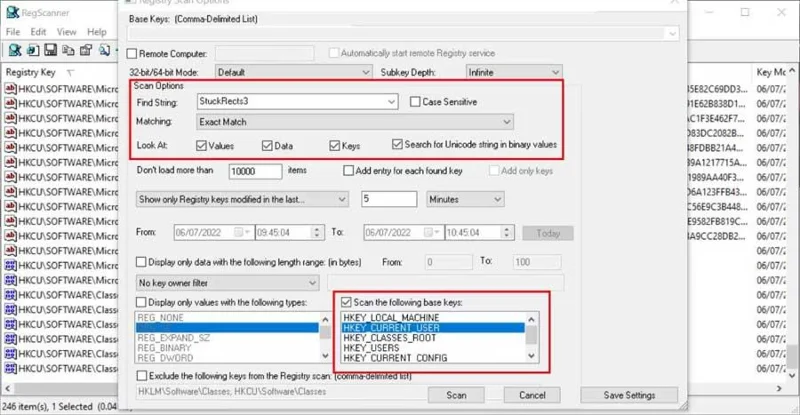
2. In the Find String field , enter the name of the value you want. For example, StuckRects 3.

3. Change Matching field to Exact Match or Registry item contains one or more words .

4. If you are unsure about the name of a value or a key, leave all options in the Look At field blank .

How to find information in the Windows Registry quickly

5. Near the bottom of the scan options, select the base key (HKEY_LOCAL_MACHINE) - This is where you think it contains the value you are looking for. If you're not sure, you can select all.

6. Click Scan and wait for the results to appear on the main page. With an exact name search, usually only one result appears. You can double-click it to open it in Registry Editor.

You can easily search by other data types such as DWORD values, even a string. Just change the Matching field to the data type you are using.

By edit date

If you know the last time the value or key was modified or when some software was installed, you can apply this method.

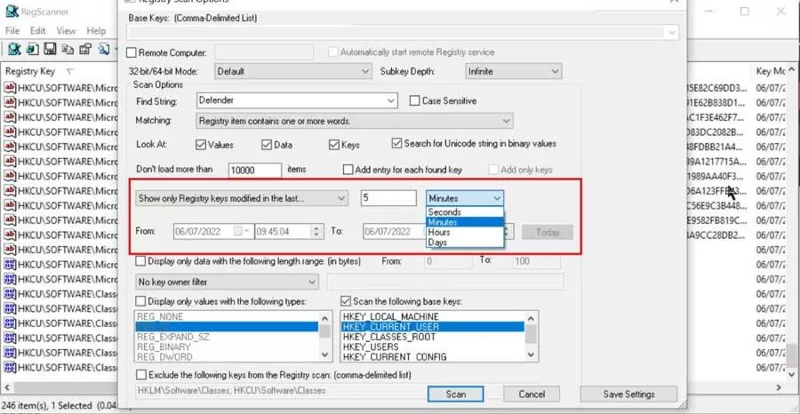
1. In the Scan option , enter search keywords. If you just want to find all edited values ​​by date range, skip this.

2. You have two time editing options in the filter: Show only in the last and Show only within the specified range .

How to find information in the Windows Registry quickly

3. Select the time filter that suits your needs, set the desired time or date range. Then, click the Scan button .

4. When you find the required value or key, double-click it to open it in Registry Editor.

Use Find in Registry Editor

This method only allows you to search by value, date or key name. It also doesn't return a list of results like RegScanner does. If the exact value you enter is not found, Find will not return results.

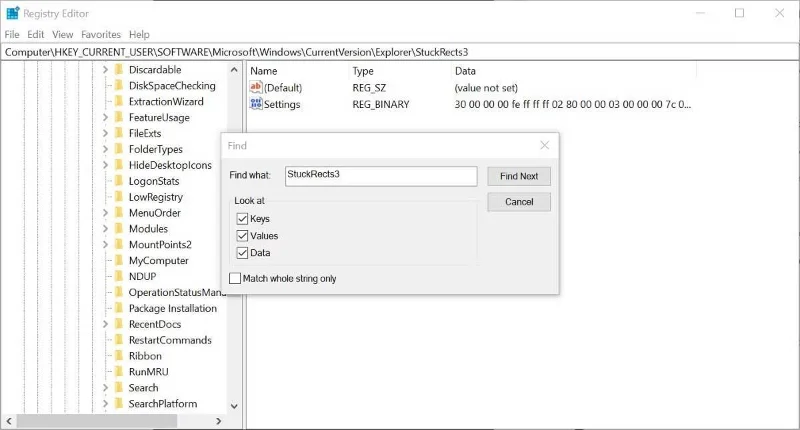
  1. To use the Find function , open Registry Editor and click Edit .
  2. Select Find from the menu and enter keywords in the field.
  3. You can choose from keys, values, data or search for all three.

How to find information in the Windows Registry quickly

If some values ​​have the same name, you can press F3 to find more results if you don't see the data you want.

Above are the simplest ways to find the Windows Registry . Hope the article is useful to you.
Leave a Comment

How to Setup Windows 11 Always On Top Windows

How to Setup Windows 11 Always On Top Windows

Discover how to setup Windows 11 Always On Top windows effortlessly. Boost your multitasking with step-by-step guides, tips, and the latest 2026 updates for ultimate efficiency.

How to Repair Corrupted GPT Bootloader in Windows 11

How to Repair Corrupted GPT Bootloader in Windows 11

Struggling with a corrupted GPT bootloader in Windows 11? Discover step-by-step methods to repair it quickly and get your PC booting smoothly again. Expert tips for hassle-free recovery.

How to Use Windows 11 Character Map Tool

How to Use Windows 11 Character Map Tool

Discover how to effortlessly use the Windows 11 Character Map Tool to insert special characters, emojis, and symbols into your documents. Step-by-step guide with tips for beginners and pros.

How to Fix Windows 11 Registry Errors Safely

How to Fix Windows 11 Registry Errors Safely

Discover safe, step-by-step methods to fix Windows 11 registry errors without risking your system. Learn essential tools, prevention tips, and best practices for optimal PC performance.

How to Use Windows 11 Command Prompt for Repair

How to Use Windows 11 Command Prompt for Repair

Discover how to use Windows 11 Command Prompt for repair tasks. Learn step-by-step commands to fix system errors, boot issues, and more with expert tips for quick resolutions.

Solving Windows 11 Firewall Blocking Local Games Fix

Solving Windows 11 Firewall Blocking Local Games Fix

Struggling with Windows 11 Firewall blocking your local games? Discover proven fixes to unblock access, optimize settings, and get back to gaming without interruptions. Easy steps for seamless multiplayer fun.

How to Fix Windows 11 Memory Management Error

How to Fix Windows 11 Memory Management Error

Struggling with the frustrating Windows 11 "Memory Management" error? Discover proven, step-by-step fixes to resolve it quickly and get your PC running smoothly again. Updated with the latest tips for optimal performance.

How to Fix Windows 11 System Restore Error 0x80070005

How to Fix Windows 11 System Restore Error 0x80070005

Struggling with Windows 11 System Restore Error 0x80070005? Discover proven, step-by-step solutions to fix access denied issues and restore your system smoothly. No tech expertise needed!

How to Use Windows 11 Clock with Seconds

How to Use Windows 11 Clock with Seconds

Discover how to enable and use the Windows 11 clock with seconds for precise timing. Step-by-step guide to customize your taskbar clock, troubleshoot issues, and boost productivity with accurate timekeeping.

How to Change Windows 11 Product Key Without Reinstalling

How to Change Windows 11 Product Key Without Reinstalling

Discover a step-by-step guide to changing your Windows 11 product key without reinstalling. Save time, avoid data loss, and activate your OS effortlessly with our expert tips.

How to Setup Windows 11 Guest Account Correctly

How to Setup Windows 11 Guest Account Correctly

Discover how to set up a Windows 11 guest account correctly for secure, hassle-free sharing. Follow our expert steps to enable limited access without risking your main profile—perfect for family or visitors.

How to Fix We Couldnt Connect to the Update Service

How to Fix We Couldnt Connect to the Update Service

Struggling with the "We Couldn

How to Fix Windows 11 Registry Bloat and Speed Fix

How to Fix Windows 11 Registry Bloat and Speed Fix

Struggling with a sluggish Windows 11 PC? Learn proven steps to fix registry bloat, optimize your system, and restore lightning-fast speed. Simple, safe methods for everyone.

How to Fix Windows 11 Hyper-V Virtual Switch Error

How to Fix Windows 11 Hyper-V Virtual Switch Error

Struggling with the Windows 11 Hyper-V Virtual Switch error? Discover proven, step-by-step fixes to get your virtual machines running smoothly. Say goodbye to connectivity issues and hello to seamless virtualization. Updated with the latest troubleshooting tips.

How to Disable Windows 11 Notifications and Ads

How to Disable Windows 11 Notifications and Ads

Tired of constant interruptions? Learn how to disable Windows 11 notifications and ads with simple, step-by-step instructions. Reclaim your focus and enjoy a cleaner PC experience today.