
How to Retract an Outlook Email
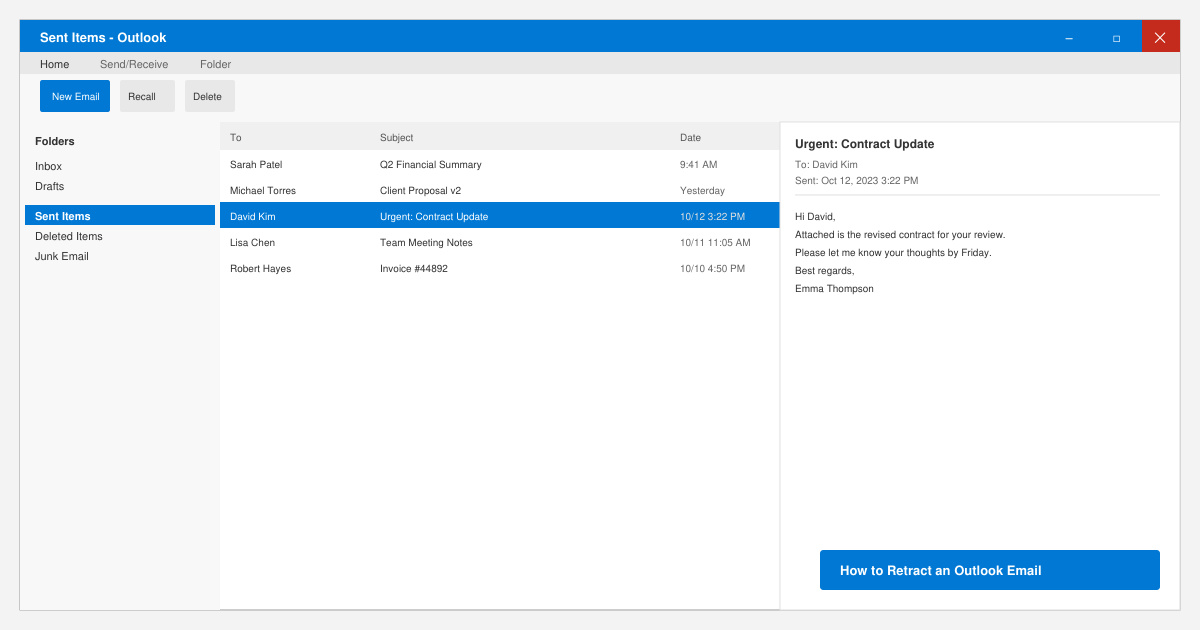
Learn how to retract an Outlook email in Microsoft Outlook when you need to correct a mistake before the recipient opens it. Follow these precise steps for Exchange accounts.
Reinstalling your Mac’s operating system always comes with a hint of fear: what if you encounter an error during the process? The possibility is both stressful and can set you back on your work considerably. Fortunately, seeing “the recovery server could not be contacted” error message isn’t usually worth worrying about.
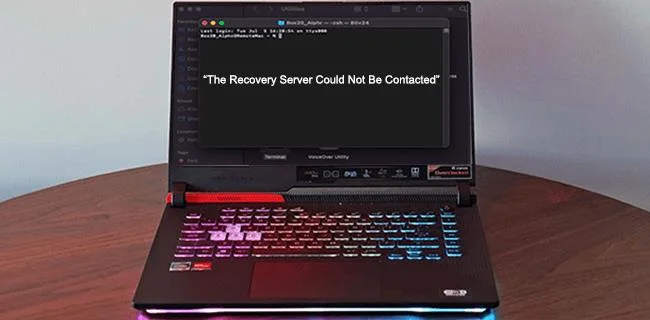
Whether you’re installing an update or recovering your data, your device needs to communicate with Apple’s servers. And if it can’t establish a connection, you’ll get the above error message. So how do you fix it promptly and proceed with your installation? Read about the possible solutions below.
The Recovery Server Could Not Be Contacted
There are several possible reasons why you encountered “the recovery server could not be contacted” Mac error message. Some have to do with your settings, while others are server-related. Typically, one of the following causes is to blame:
Before you proceed to troubleshoot, it’s a good idea to confirm that the issue is on your end. Whenever Apple rolls out a major macOS update, a large number of users try to install it at once, resulting in server overload. The only way to confirm this would be to contact Apple, but you can still look for indications of server issues. Check Apple’s Server Status page to see if any of their services are down.
Now let’s see what you should do if the servers don’t seem to be at fault.
The Recovery Server Could Not Be Contacted in High Sierra
Checking your internet connection and/or resetting your date and time usually fixes this error in High Sierra OS. Follow the steps below to get it done.
Check Your Internet Connection
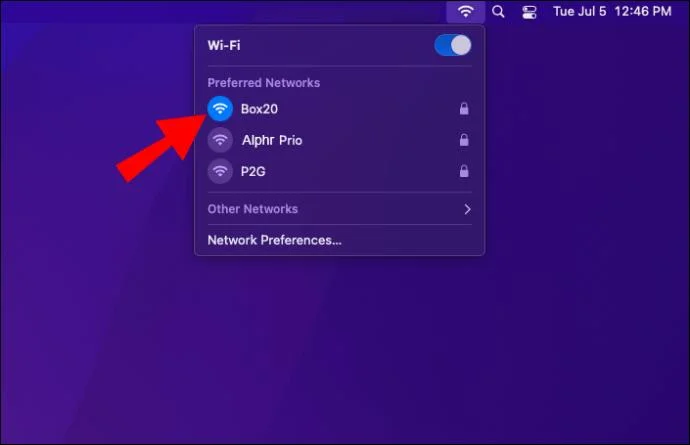
The most common reason your device fails to connect to the servers is no internet connection. If you’re using Ethernet, unplug your cable and then plug it back in. In the case of Wi-Fi, here’s what to do on the Utilities screen:
As soon as you’re connected to the internet, you’ll be able to proceed with the installation. But if your Wi-Fi connection isn’t strong enough to reinstall your Mac OS, you’ll need to troubleshoot that first.
Sync Your Time and Date
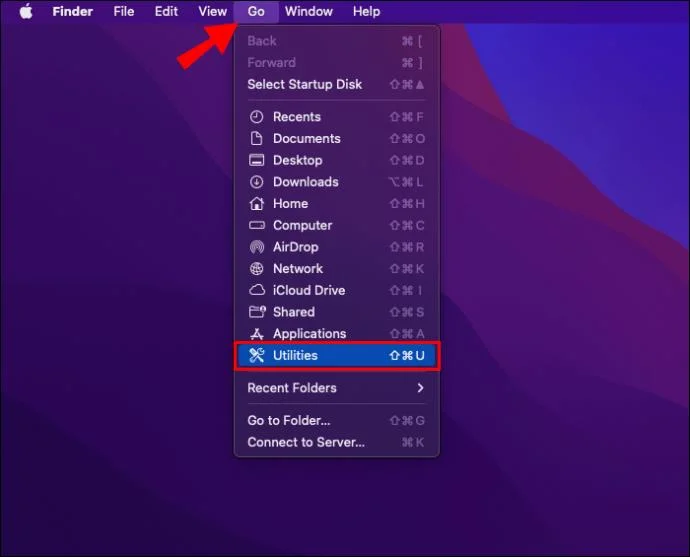
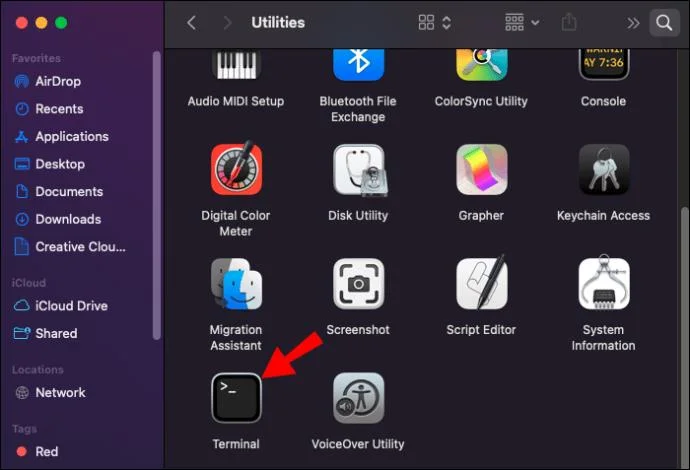
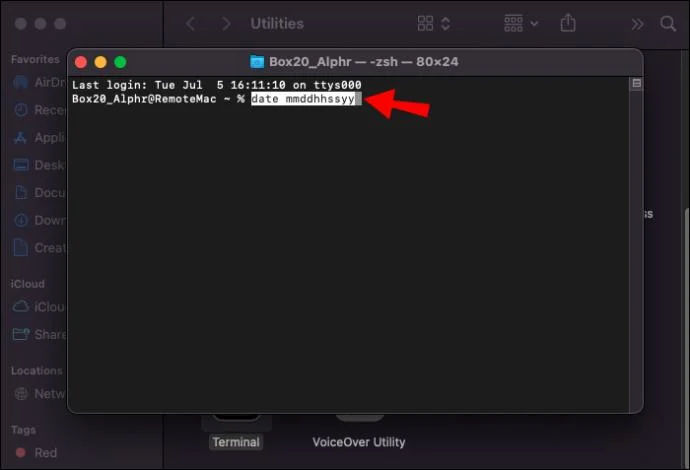
If your internet connection is stable but the error message persists, your date and time settings may be at fault. Your device’s date and time must correspond with Apple’s servers. Follow these steps to update your date and time:
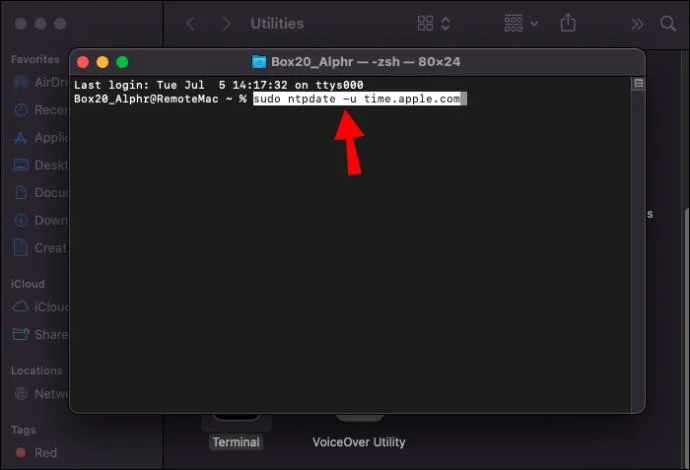
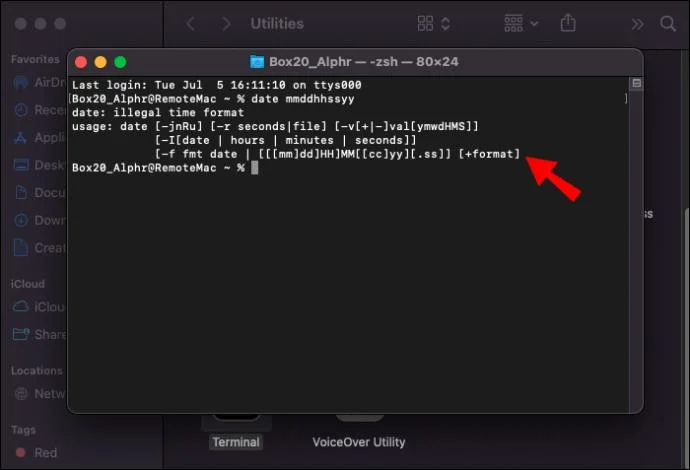
sudo ntpdate -u time.apple.com” command (without quotation marks) in the new window and hit Enter.This command synchronizes your device’s date and time with the servers. If you still received an error while executing this command, try typing the same code without “sudo” at the beginning. If this doesn’t work either, you can enter the appropriate time and date manually:
The Recovery Server Could Not Be Contacted in Catalina
If you get this error on your device running macOS Catalina, you can try the solutions below:
Connect to the Internet
Since a stable internet connection is necessary for any macOS installation, the first thing to check is your internet connection. Ethernet users should make sure their cable is plugged in correctly. Unplugging and re-plugging your cable can also do the trick. If your device uses Wi-Fi, check your internet connection in the following way:
Once your device is connected to the internet, you’ll be able to continue the installation process with no error message disrupting your work. If you have a connection but it’s too weak to install the updates, you’ll need to fix that first.
Reset Your Time and Date
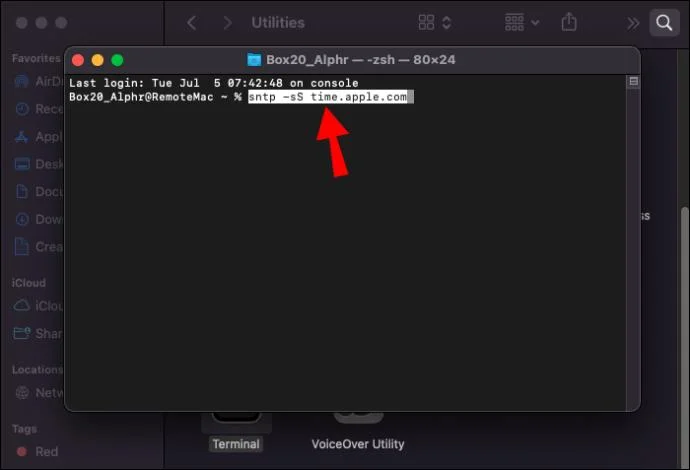
If you get the error despite a stable internet connection, the next thing to check is your date and time. Sync your date and time with Apple’s servers using the following command:
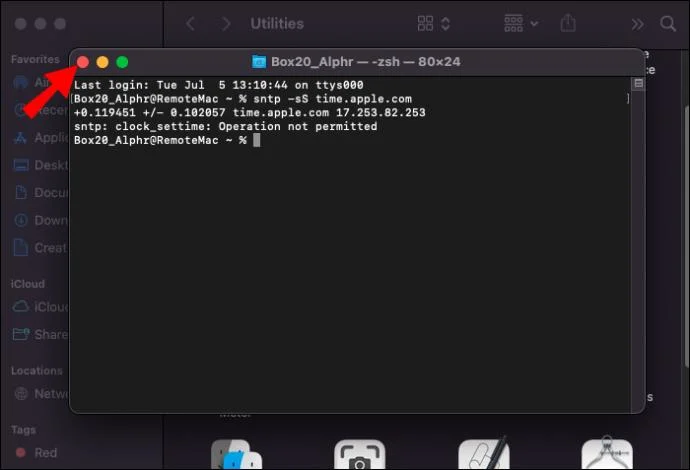
sntp -sS time.apple.com” command (without quotation marks) and press Enter. Your date and time will be updated immediately.If this attempt wasn’t successful, add “sudo” to the command to get “sudo sntp -sS time.apple.com.” If this didn’t do the trick either, set the date and time manually:
Fetch the Full Installer
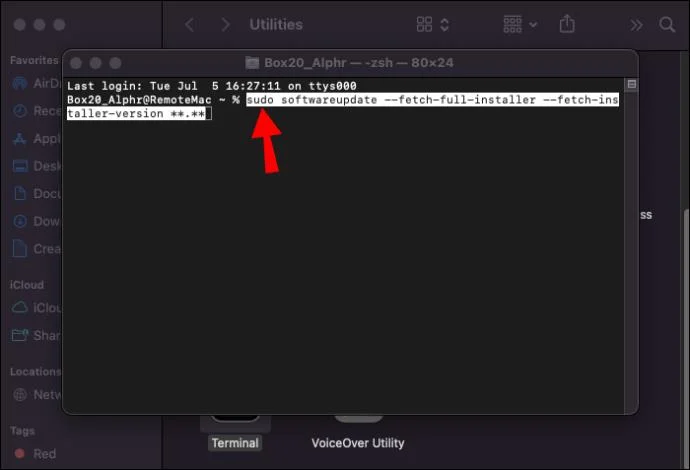
On Catalina 10.15 and newer versions, you can prompt your device to download the full macOS installer this way:
sudo softwareupdate --fetch-full-installer” (without quotation marks).sudo softwareupdate --fetch-full-installer --fetch-installer-version **.**” while replacing the stars with the version number.The Recovery Server Could Not Be Contacted in Big Sur
If you get “the recovery server could not be contacted” error message on Big Sur, check the following settings:
Ensure You’re Connected to the Internet
Most users could easily resolve this error by simply connecting to the internet. If you’re using Ethernet, ensure that your cable is plugged in. In the case of Wi-Fi, check whether you have a signal this way:
Sync Your Time With Apple’s Servers
If connecting to the internet didn’t do the trick, your date and time settings may be out of sync with Apple’s servers. You can update your date and time on Big Sur using the “sntp -sS time.apple.com” command:
sntp -sS time.apple.com” (without quotation marks) and hit Enter.The “sntp -sS time.apple.com” command synchronizes your date and time with Apple, which should solve the recovery server issue. If the command doesn’t work, try “sudo sntp -sS time.apple.com” (again, without quotation marks). You can also set the date and time manually if all else fails:
Check whether you can reinstall your macOS now.
Use the macOS Full Installer
If there’s no issue with the date and time, you can also try using the macOS Full Installer to update Big Sur with the following command:
sudo softwareupdate --fetch-full-installer” (without quotation marks) for the latest OS version.sudo softwareupdate --fetch-full-installer --fetch-installer-version **.**” (without quotation marks) for a specific OS version. Replace the stars with the version number.The Recovery Server Could Not Be Contacted on a Hackintosh
The solution to “the recovery server could not be contacted” error on a Hackintosh (a computer that runs on a macOS but is not authorized by Apple) might be slightly less straightforward. Finding a way to connect to the internet can be challenging. Some of the common issues and solutions include:
Once connected to the internet, ensure your date and time settings are in sync with Apple’s servers as instructed above, and you’re good to go.
No Issue Too Big to Climb
An installation error can be scary, but you probably don’t need to panic if your Mac couldn’t connect to the recovery server. This error typically results from no internet connection or faulty date and time settings. If correcting these two things doesn’t do the trick, you can also try using the full installer.
Which solution fixed this common error for you? Do you have any tips to share with those still stuck on the Utilities screen? Let us know in the comments below.
Learn how to retract an Outlook email in Microsoft Outlook when you need to correct a mistake before the recipient opens it. Follow these precise steps for Exchange accounts.
Learn how to Chromecast in Samsung TV by connecting a Chromecast device and streaming from your phone or computer in just a few minutes.
Get the official Adobe Acrobat DC Reader free download safely. Follow this step-by-step guide to install the latest version for viewing and editing PDFs on Windows or Mac.
How to Update to Win 11 from Windows 10 safely with this detailed guide. Check requirements, run the upgrade, and enjoy new features and better security on compatible hardware.
Get the Adobe Reader Free Version to view, print, and annotate PDFs at no cost. Follow this guide to download, install, and use the official free reader safely on any device.
How to boot in safe mode Windows 11 helps isolate driver and software issues. Follow these precise steps using built-in tools to start your PC with minimal services.
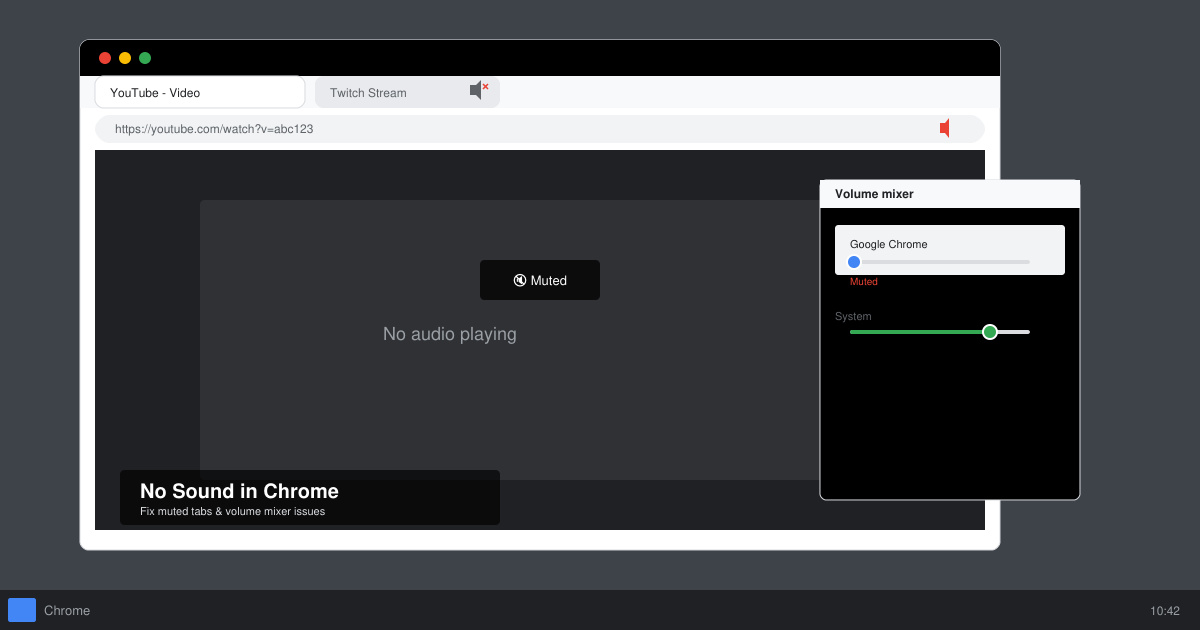
Fix No Sound Chrome Browser problems fast with these targeted troubleshooting steps that restore audio on Windows, Mac and Linux.
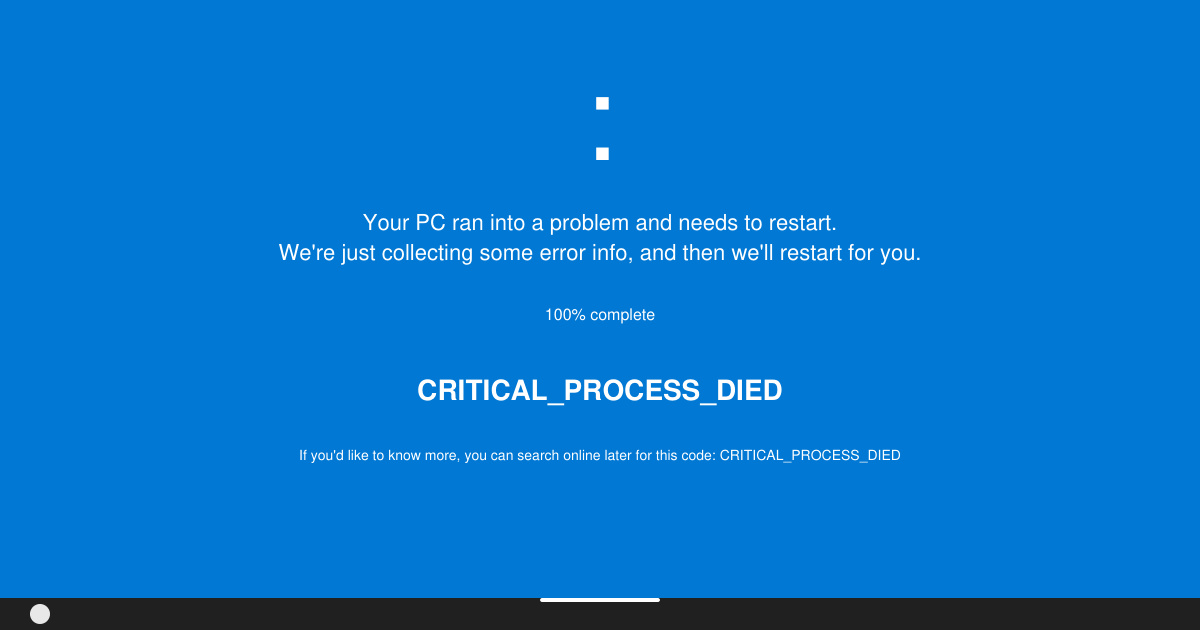
Resolve the Critical Process Died Windows 11 error with targeted fixes for drivers, system files, and hardware. Restore stability fast and stop repeated Blue Screen crashes.
Adobe Reader PDF Reader lets you view, annotate, sign and fill PDF forms with precision. Follow this guide to install and master its core tools on desktop or mobile.
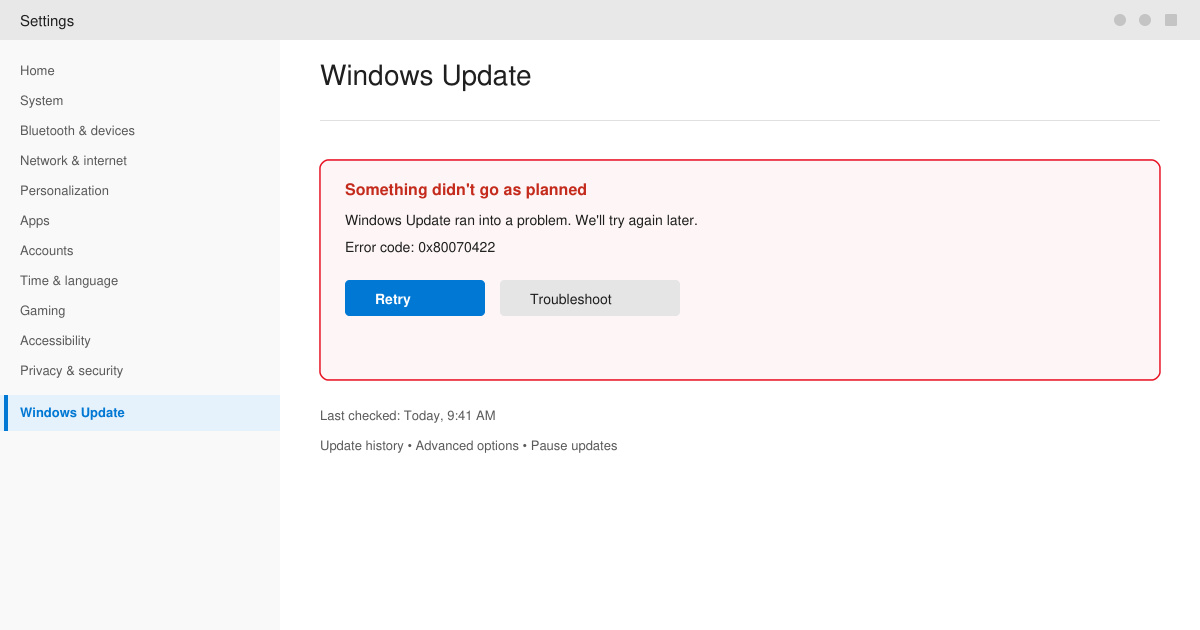
Windows 11 Update Issues often stem from corrupted files or service glitches. Follow these targeted fixes to resolve errors and keep your system current without reinstalling Windows.