How to create an ebook with Microsoft Word

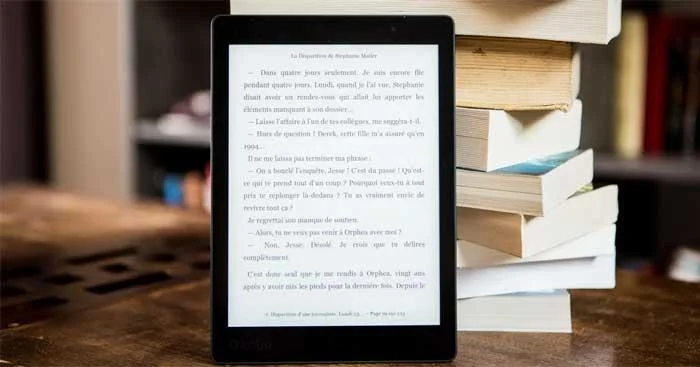
Do you want to create an ebook using Microsoft Word ? So please refer to how to design and format an ebook in a few steps on Word below.
How to create an ebook with Microsoft Word

Instructions for creating ebooks using Microsoft Word

Step 1: Prepare

First, you should determine the main content of the ebook and how to layout it to make designing the rest easier. Some basic factors you need to prepare before creating an ebook:

  • Topic of the ebook.
  • Attractive title.
  • The length is appropriate to the topic.
  • Layout the ebook, e.g. sections, main/subheadings, if possible, add a few sentences to each section so the reader gets the gist of what the ebook is about. You can also write a draft first in a simple Word document before diving into the design.

Step 2: Create a cover page

Once you have the perfect book title, all you need to do is create an impressive cover. Below are the steps to create an ebook cover page in Word:
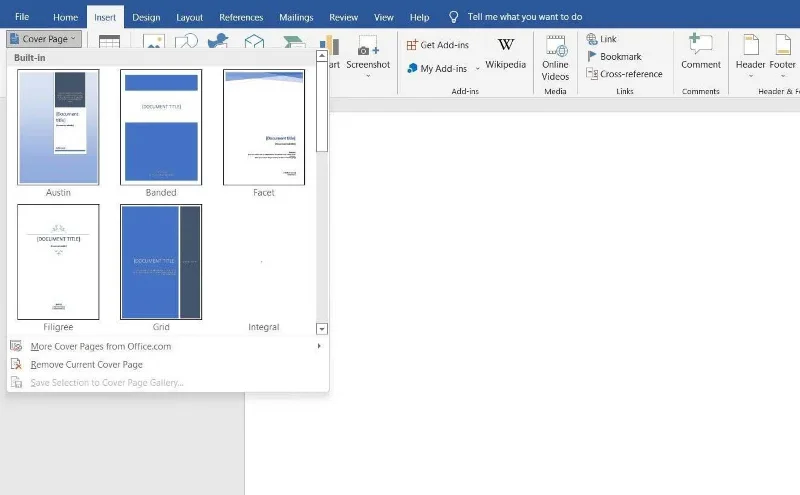
  1. Go to the Insert menu .
  2. Click the Cover Page button below on the left.
  3. Choose a cover page that matches the ebook.

How to create an ebook with Microsoft Word

Step 3: Add copyright page

To copyright your ebook, you need to add this page to your layout as follows:
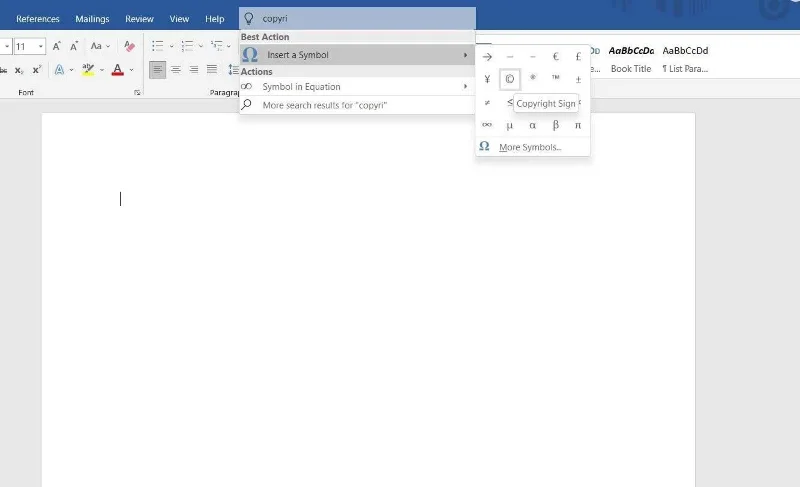
  1. Go to the Insert menu .
  2. Click Symbols on the right.
  3. Search for the copyright symbol and enter content into the page.
  4. Finally, write copyright, authorship, and copyright notices.

How to create an ebook with Microsoft Word

Step 4: Insert table of contents

The table of contents helps readers know how many sections are in the ebook. Microsoft Word provides you with 2 different table styles:

  • Automatic table : Show all titles, from 1 to 3 in order. These versions have two separate titles: Contents and Table of Content. You can choose either one. They have the same function. Because it is automatically generated, you can enter as many headings (up to H3 level) as you want and just update the table. Word will automatically fill in the content.
  • Manual Table : If there are more than 3 levels of subheadings in the ebook, for example, H4, H5, H6... you can choose this table style. As the name suggests, you can manually enter detailed information inside.

To insert a table of contents in an ebook, follow these steps:
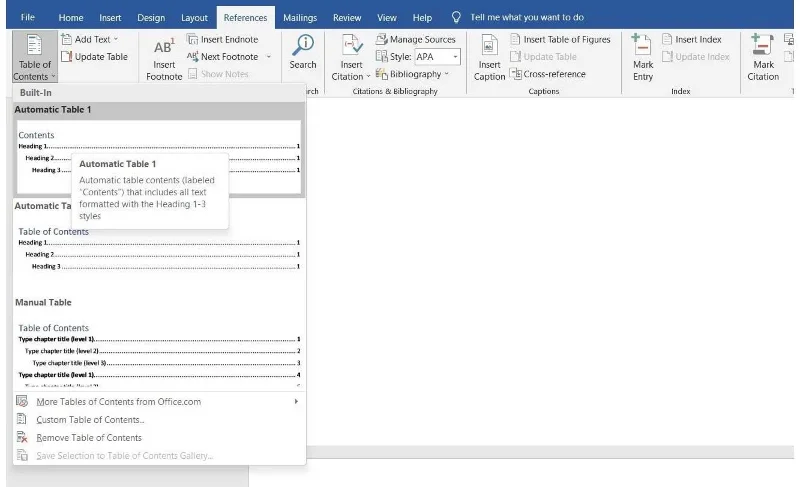
  1. Go to the References menu .
  2. Click the Table of Content button located on the left side.
  3. Select the Automatic or Manual panel from the drop-down menu.

How to create an ebook with Microsoft Word

To update the table of contents, follow these simple steps:

  1. Go to References .
  2. Click the Update Table button next to Table of Content .

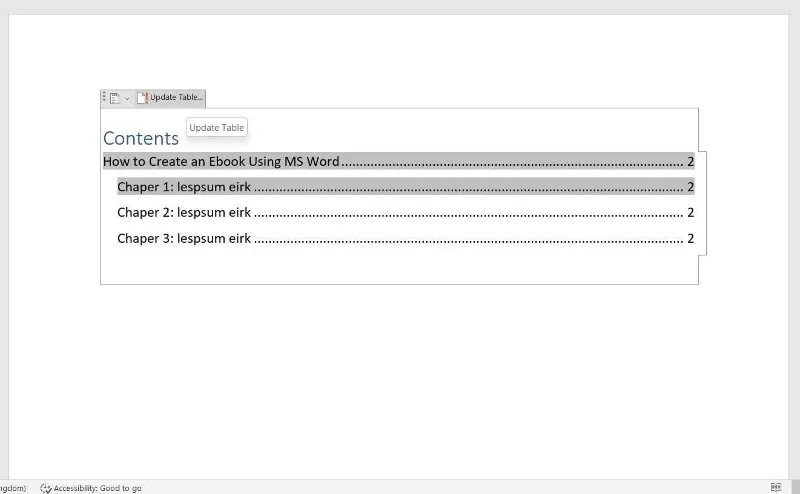
You can also update the content for this table:
How to create an ebook with Microsoft Word

  1. Go to the Table of Content page in the ebook.
  2. Select this table.
  3. Click the Update Table button > select Update Entire Table .

Step 5: Add Header and Footer

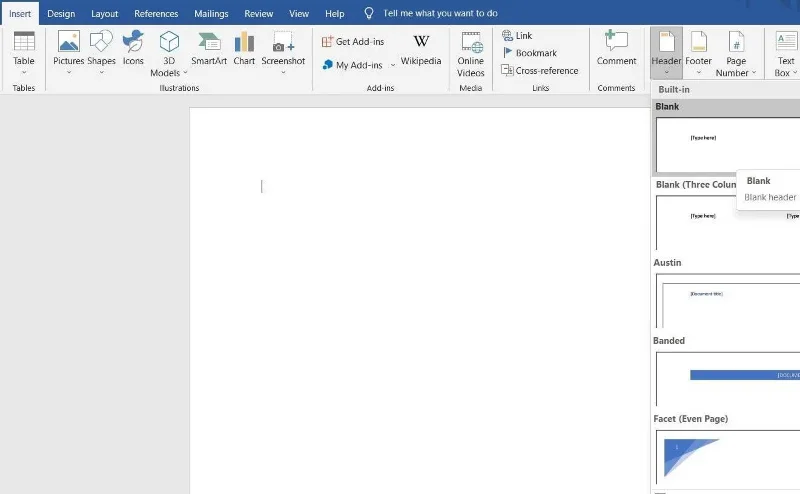
Depending on the purpose of the ebook, you can add your company name or web URL, page number... to the header and footer. Most ebooks write the title in the Header. To insert it into an ebook:
How to create an ebook with Microsoft Word

  1. Go to the Insert menu .
  2. Click Header .
  3. Choose the right title from the many available options.

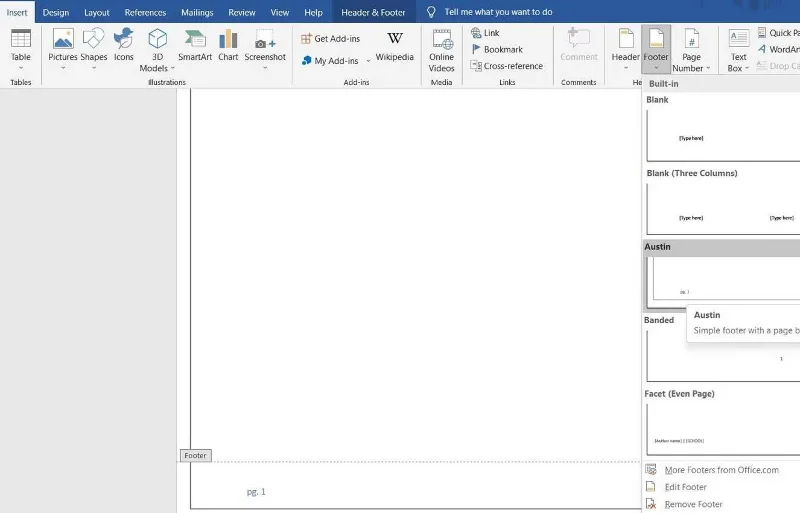
Similarly, you can display any information in the footer, suitable for ebooks. To insert footer:
How to create an ebook with Microsoft Word

  1. Go to the Insert menu .
  2. Click Footer .
  3. Choose the footer style you want. To automatically add page numbers, select Austin or Branded.

Step 6: Create a draft

You have completed most of the necessary formatting for the ebook. Now you can start writing the manuscript. If you've created it in another document, just copy & paste the text.

To make sure the table of contents includes every main heading, select them from the Headings selection:

  1. Go to the Home menu.
  2. Select the necessary heading (Heading 1/2/3).

In addition, Microsoft Word also allows you to insert images or charts in the document. To add a photo, follow these steps:
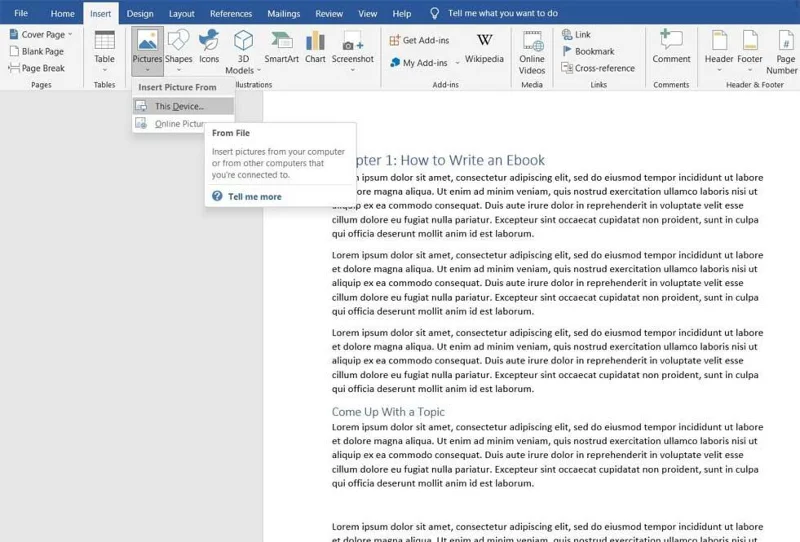
  1. Go to the Insert menu .
  2. Click Pictures .
  3. Select This Device if the image is available offline, or select Online Pictures to directly insert the image from the web.

How to create an ebook with Microsoft Word

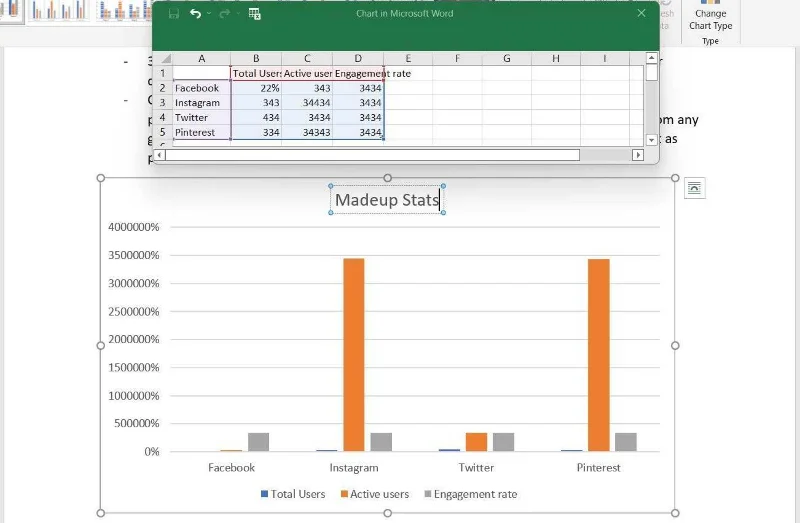
If you write an ebook about true stories that need to explain many different concepts, you can choose to insert:
  • Multiple shapes - Word has a list of multiple shapes to choose from.
  • Icons - Search for specific icons according to your needs, for example, arrows, body parts, graphic icons...
  • 3D Model - Like photos, you can directly insert them from online options or upload them to your device.
  • Charts - If you need a chart to explain a concept or show changes in values, you can insert a column, line, pie, bar, histogram or any other graph/chart type from Chart and customize Turn it according to need.

How to create an ebook with Microsoft Word

Because this is an ebook, you can insert links into the text if you want to lead readers to any website or landing page. To insert links:

  1. Select the text you want to link to a web page.
  2. Right click and select Link .
  3. Paste the URL of the link and press Enter .

Step 7: Add author page

Ending your ebook with an author page is a great marketing tactic. You can add a biography, a short, concise summary of the author's highlights on this page and add social network/web links, email addresses, and even promote products here if available.

Step 8: Complete and export the ebook

This is the final step. Make the necessary editing and proofreading to get the ebook as accurate as you want, then export it to PDF to share with readers.

How to convert Microsoft Word ebook to PDF as follows:
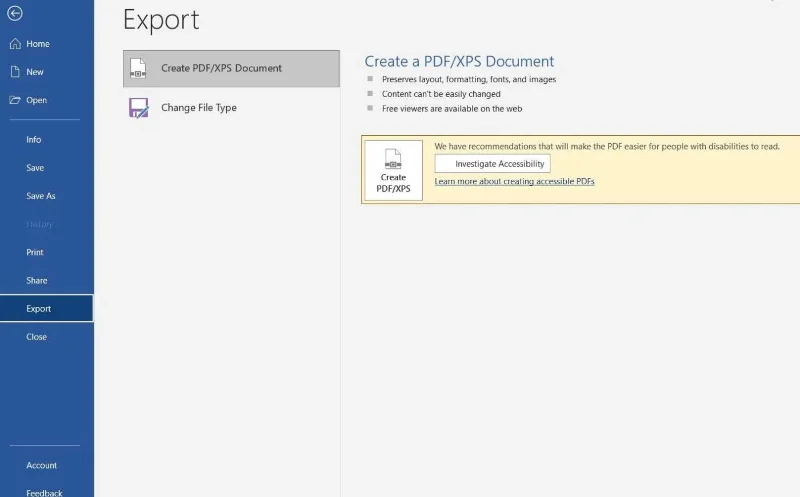
  1. Go to Files from the main menu.
  2. Click Export .
  3. Click Create a PDF/XPS Document .

How to create an ebook with Microsoft Word

If you intend to write a story or short novel, Microsoft Word can be the perfect choice to start. As you can see, creating an ebook with Word is not too difficult, right? Hope the article is useful to you.

Leave a Comment

Solving Microsoft Edge Status In Page Error During Browsing

Solving Microsoft Edge Status In Page Error During Browsing

Tired of Microsoft Edge "Status In Page Error" ruining your browsing? Get proven, step-by-step fixes to resolve it fast. Clear cache, reset settings, and more for seamless surfing.

Troubleshooting Microsoft Edge Certificate Mismatch Warning

Troubleshooting Microsoft Edge Certificate Mismatch Warning

Struggling with Microsoft Edge Certificate Mismatch warning? Discover step-by-step troubleshooting fixes for this common SSL error. Clear cache, update Edge, and more for secure browsing.

How to Reset Microsoft Edge to Default Factory Settings

How to Reset Microsoft Edge to Default Factory Settings

Struggling with a sluggish Microsoft Edge? Discover how to reset Microsoft Edge to default factory settings in minutes. Step-by-step guide with visuals to fix crashes, pop-ups, and performance issues effortlessly.

Troubleshooting Microsoft Edge Youtube Black Screen 2026

Troubleshooting Microsoft Edge Youtube Black Screen 2026

Struggling with YouTube black screen on Microsoft Edge in 2026? Discover proven, step-by-step troubleshooting fixes to restore smooth video playback instantly. Quick solutions that work!

Troubleshooting Microsoft Edge Sidebar Not Opening Glitch

Troubleshooting Microsoft Edge Sidebar Not Opening Glitch

Tired of Microsoft Edge sidebar not opening glitch? Discover quick, effective troubleshooting steps to restore your sidebar instantly. Step-by-step guide with latest fixes for seamless browsing.

How to Fix Microsoft Edge Firewall Blocking Games Fix

How to Fix Microsoft Edge Firewall Blocking Games Fix

Tired of Microsoft Edge "Firewall" blocking your games? Discover proven, step-by-step fixes to unblock games quickly. Get back to seamless gaming with our ultimate guide – no tech skills needed!

Why is Microsoft Edge Better than Chrome in 2026?

Why is Microsoft Edge Better than Chrome in 2026?

Unlock why Microsoft Edge surpasses Chrome in 2026 with blazing speed, unbeatable battery life, AI power, and ironclad privacy. Discover game-changing features that make Edge the smartest switch for power users.

How to Fix PDF Preview Handler Errors in Microsoft Edge

How to Fix PDF Preview Handler Errors in Microsoft Edge

Struggling with PDF Preview Handler Errors in Microsoft Edge? Discover step-by-step fixes to restore seamless PDF previews in File Explorer. Quick troubleshooting, registry tweaks, and prevention tips for the latest Edge versions. Get it fixed now!

How to Manage Microsoft Edge Multiple Profiles and Sync

How to Manage Microsoft Edge Multiple Profiles and Sync

Discover how to effortlessly manage Microsoft Edge multiple profiles and sync across devices. Create, switch, sync favorites, passwords, and more for personalized browsing without hassle.

Solving Microsoft Edge Hsts Attack Warning Fix (2026)

Solving Microsoft Edge Hsts Attack Warning Fix (2026)

Struggling with Microsoft Edge HSTS Attack Warning? Get the ultimate 2026 fixes with step-by-step guides to resolve this frustrating security alert fast. Clear cache, reset settings, and stay secure!

Solving Microsoft Edge Core Isolation Not Turning On

Solving Microsoft Edge Core Isolation Not Turning On

Struggling with Microsoft Edge Core Isolation not turning on? Discover step-by-step fixes for Core Isolation issues, including BIOS tweaks, driver updates, and Windows repairs to boost your security instantly.

Troubleshooting Game Bar Party Chat Audio Not Working

Troubleshooting Game Bar Party Chat Audio Not Working

Struggling with Game Bar Party Chat audio not working? Discover step-by-step troubleshooting for Xbox Game Bar voice chat issues. Quick fixes for no sound, mic problems, and more on Windows. Get back to gaming!

How to Fix Microsoft Edge Update Error 0x80073712

How to Fix Microsoft Edge Update Error 0x80073712

Struggling with Microsoft Edge Update Error 0x80073712? Discover step-by-step fixes like SFC scan, DISM repair, and Edge reset to resolve it fast. No tech skills needed!

Solving Microsoft Edge Private Connection Warnings

Solving Microsoft Edge Private Connection Warnings

Tired of Microsoft Edge "Private Connection" warnings blocking your browsing? Get step-by-step solutions to solve Microsoft Edge Private Connection errors fast. Secure, updated fixes for seamless surfing.

How to Fix Microsoft Edge Result_Code_Hung Error

How to Fix Microsoft Edge Result_Code_Hung Error

Struggling with Microsoft Edge "Result_Code_Hung" Error? Discover proven, step-by-step fixes to resolve hangs and crashes instantly. Get smooth browsing back today!