The Python interpreter is a programming language which can be used in Visual Studio Code. It comes in different versions with different features and capabilities. The default version usually comes with Python when you install it on your computer. However, you can have multiple versions installed on your device, and you can choose between them if you need to change the interpreter.
In this article, we’ll explain how to change the Python interpreter in VS Code.
How to Change the Python Interpreter in VS Code on Windows or Linux
Changing the Python interpreter in VS Code is a straightforward process that can be completed in just a few steps.
Here’s how it’s done:
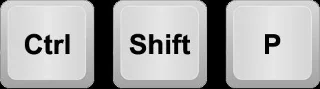
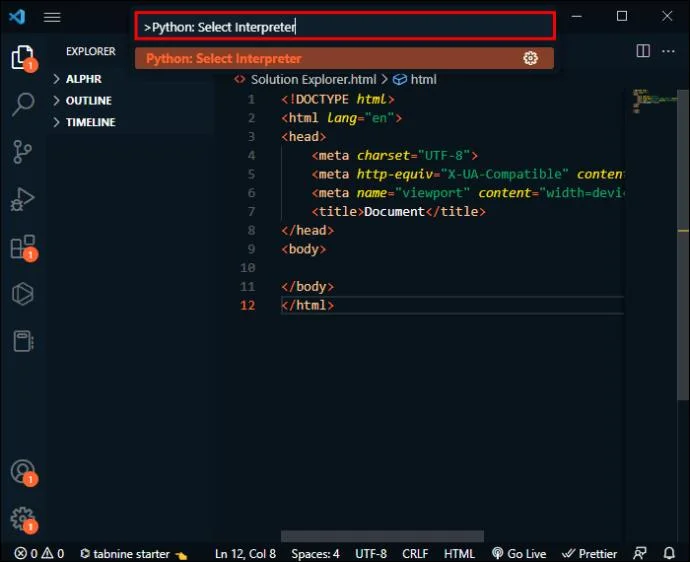
- Press “Ctrl + Shift + P” to open the Command Palette. You can easily access VS Code commands and features through the Command Palette.

- Start typing “
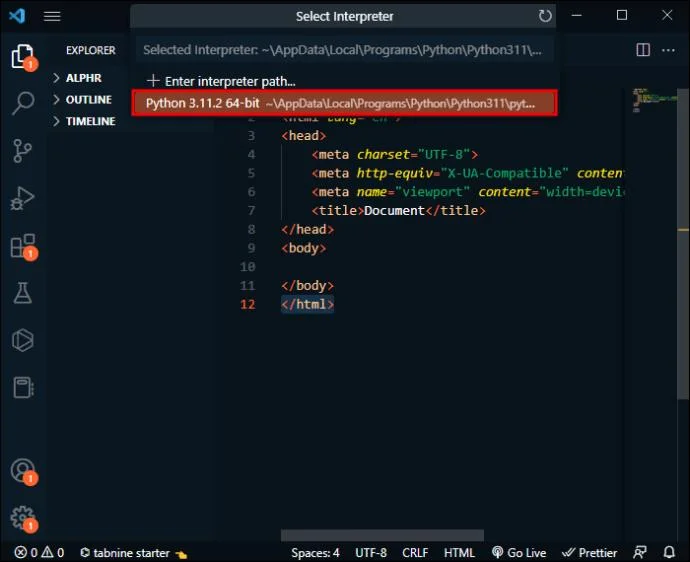
Python: Select Interpreter” and press Enter. You’ll open a list on Python interpreters available on your device if you have multiple versions installed. If the Python extension doesn’t locate an interpreter, it displays a warning.

- Click on the Python Interpreter you want to use. VS Code will show the selected interpreter in the Status Bar at the bottom right part of the screen. It serves as a shortcut for the “
Python: Select Interpreter” command and shows when no interpreter is selected as well. You can also check if the correct version is being used by opening a Python file.

How to Change the Python Interpreter in VS Code on macOS
Changing the Python interpreter in VS Code on macOS is similar to changing it on Windows or Linux as only one step is different.
Simply follow these steps:
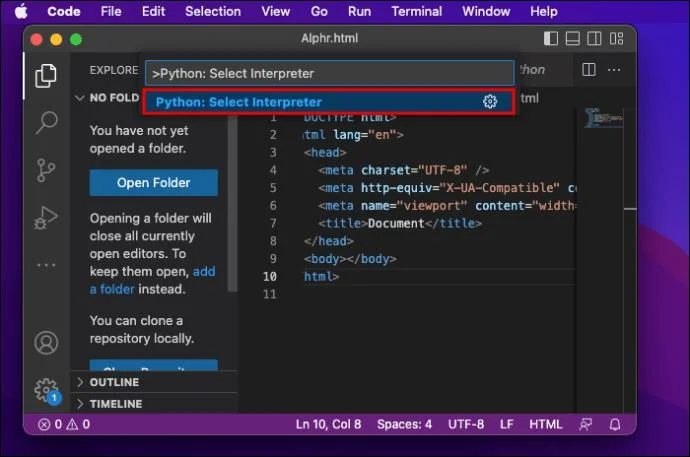
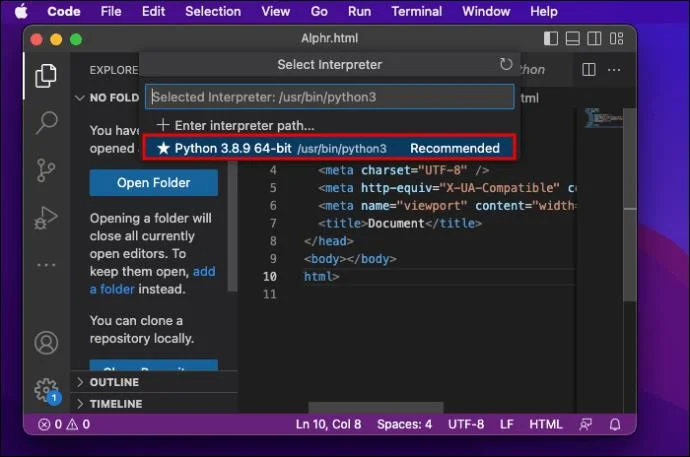
- Press “Cmd + Shift + P” to open the Command Palette.

- Start typing “
Python: Select Interpreter” and press Enter. You’ll open a list on Python interpreters available on your device if you have multiple versions installed. If the Python extension doesn’t locate an interpreter, it displays a warning.

- Click on the Python Interpreter you want to use. VS Code will show the selected interpreter in the Status Bar at the bottom right part of the screen. It serves as a shortcut for the “
Python: Select Interpreter” command and it shows when no interpreter is selected as well. You can also check if the correct version is being used by opening a Python file.

If VS Code doesn’t locate your interpreter automatically, you can manually specify an interpreter by creating a path.
Here’s what you need to do:
- Press “Cmd + Shift + P” to open the Command Palette.

- Start typing “
Python: Select Interpreter” and press Enter.

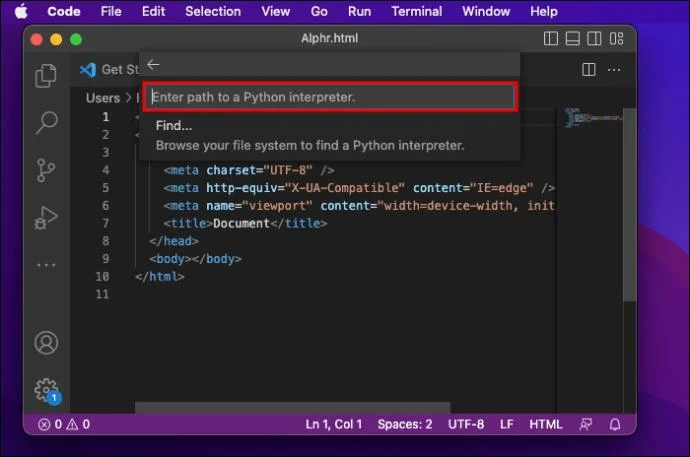
- Select “Enter Interpreter Path…”.

- Enter full path on the Python interpreter of select “Find…” and browse your file system to find the Python you need.
If you don’t have the right Python extension inside your VS Code, you need to install it first.
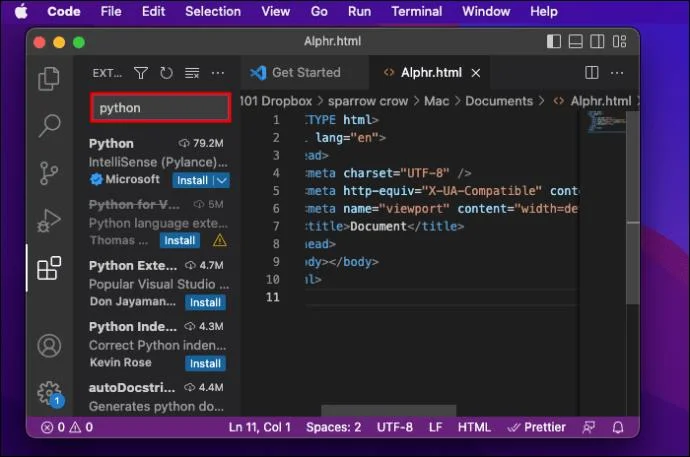
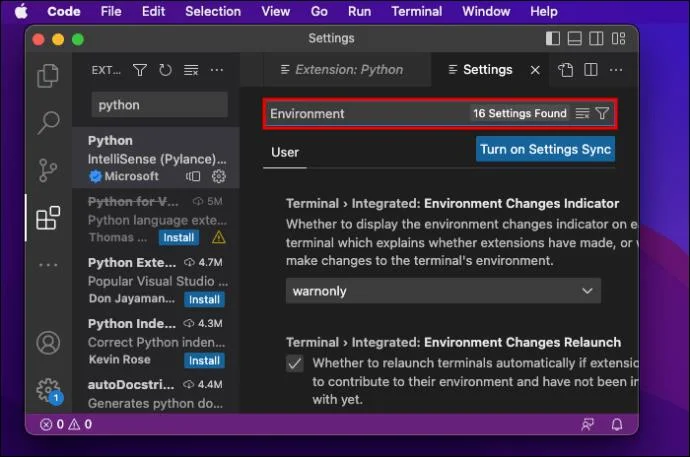
- Go to “Extensions” on the left side of the screen. Once you type “Python,” it will reveal the list of VS Code extensions popular on the VS Code Marketplace.

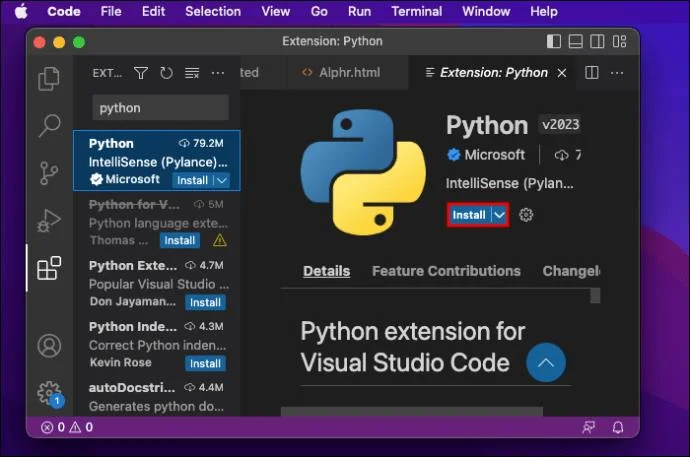
- Select the extension from the search results and click the “Install” button.

- Click on “Code,” then “Preferences,” and “Setting.“

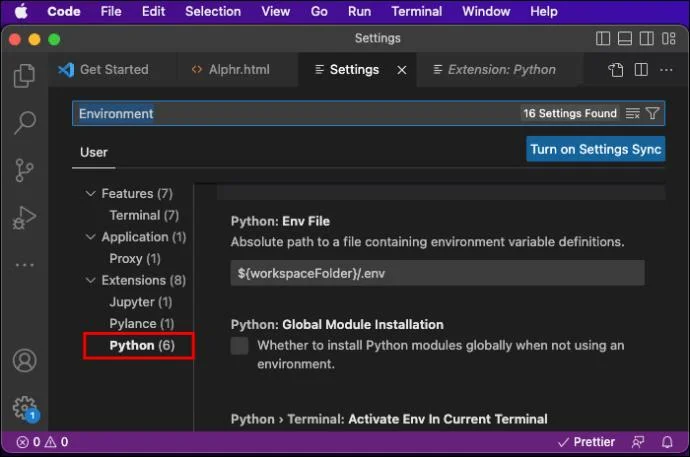
- Start typing “Environment.”

- Under “Extensions” locate “Python.”

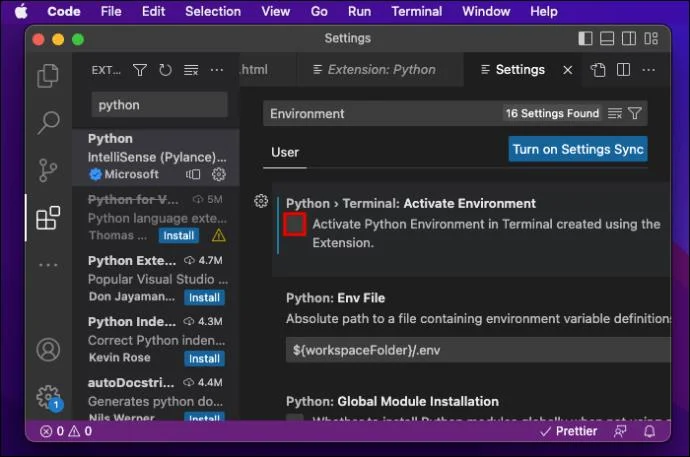
- Make sure that the box saying “Activate Python Environment in Terminal created using the Extension” is unchecked.

If you don’t have VS Code installed on your device, you can download it from the official website.
Achieve More with the Right Python Interpreter
Learning how to change the Python interpreter will allow you to switch between your installed Python versions, use virtual environments to manage your Python dependencies, use a specific Python distribution, and more. Following the steps outlined in this article, you’ll learn how to easily switch between different Python interpreters to suit your needs.
Have you already tried changing Python Interpreter in VS Code? Did you use any of the tips outlined in this article? Tell us in the comments section below.